

If you previously uploaded PDF documents to the School Messenger portal, you may have noticed that it is not possible for the average person to delete uploaded documents. This restriction was applied by design to prevent the creation of broken links when a document was either removed from the File Manager or renamed. On the other hand, this restriction may represent a challenge to you if you include the year (calendar or school) in the name of the file because you need to update the document each year. I understand that this may have been the way you learned how to store files in your local hard drive or even network drives, however, when dealing with web content management systems such as a portal which builds links to documents, there is a better way to manage your files.
The Problem
If you store documents in a Web Content Management system with the year in the document name, that year reference becomes a part of the link that people use to reference the document. That is great until the next year rolls around and a new version of the document must be uploaded. Then it becomes a challenge to find all the links to the old document and change those links to the new document with the new year in the name. Even if you change all the links on your website to point to the new document, you may not be aware of other departments/schools who also linked to last year’s document. Finally, even if you could do that, you cannot update the shortcut links people may have added to their desktops to last year’s document. Thus, they will continue to reference the old document totally unaware that there is a new version. So, what should you do?
The Solution
The solution could be as simple as understanding the difference between a document name and its title. A document name is the physical string of characters that define the name of the document in the file manager and it is the string of characters used to create links. On the other hand, the document title is a ‘user-friendly’ name for the document that is displayed to the user. It may or may not be stored with the document/file. What does that mean? Simply that if you keep the document name the same from one year to the next by NOT including the year in the name, the file is only stored once and new versions will overwrite the old versions (assuming you check the overwrite option when uploading the document). However, you can optionally insert the year in the ‘title’ of the document in the hyperlink to assure the user that the document has been updated for the current year.
In the hyperlink manager (when adding a link in a document to an uploaded file), this can be managed by entering a document name (URL) without the year and the document title (Link Text) with the year included:
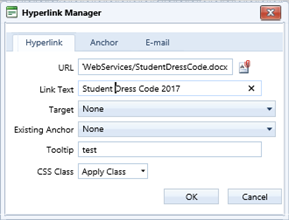
(NOTE: The document container does not support a method to have both a name and title for a file.)
When dealing with pages that must be updated from one year to another, it is just as easy to achieve this goal. When creating a new page, include the year in the TITLE, but not in the NAME of the page in the NEW PAGE dialog.
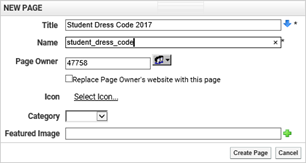
Then the TITLE of the page can be changed next year (just edit the page properties) without changing the page NAME and thus no links will be broken nor will any links need to be updated yet references to the page in the portal navigation which displays the Title will show the new year.
But what if you need to keep versions of documents for prior years?
Again, the solution here is relatively simple. It involves using two parallel folders, one for the current year, whatever that may be, and an archive folder for all prior year versions (perhaps including the current year). In the current year folder, the document name again must not include the year itself (or other date identifier). That way, a new version can simply replace the old version. Any page references to the current document if pointed to files in this folder will not need to be updated because the document name will never change from year to year. In the second, archive folder, the document name can and should include the year (or date identifier) so that the documents can be listed chronologically and so users can select a document that applies to any specific time period.
Yes, it may seem like a little more work when uploading a document or uploading changes to an existing document to store the document twice, in two different folders. However, the problems you will avoid when the year changes by not having to update pages and links with the new document name will be well worth the extra effort now.
Still not sure about how to do this? Sign up to attend the next open lab February 12, 2018 (Click Technology in the first page menu).