

Using a whole content page to link to another site:
In this first case, another site could be another OCPS site other than your own, or it could be a site outside of OCPS. An example might be a reference to the Code of Student Conduct, a document provided by the district each year in 6 different languages. Whether the school site simply points to the district page that has links to all 6 language versions of the document or whether the school site page has six links on it, one to each of the languages might sound like a sound like opposite sides of the same coin. However, they are not, because the district could at any time decide to provide the document in 7 or 8 languages rather than only 6. The school sites that point to the district page that lists the document in each of the available languages does not have to be changed when the number of languages supported change. On the other hand, if the school site points to each of the language versions individually, then a change to the number of languages supported will necessitate a change in the school page.
But even if you choose to only link to the district page, there is no need for a separate content page on the school site to do this. Rather than create a content page and place a single link on it to the district page, use an External Link Page to directly point to the district page right from the site navigation menus. Simply go to the parent page (such as School Information, or perhaps Policies under Student) and add an External Link Page with the following details:
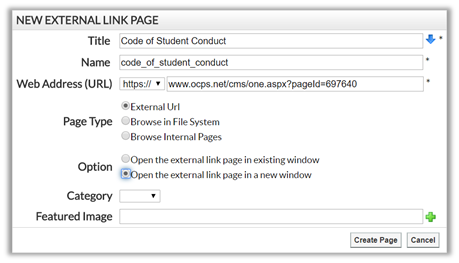
Note that when you copy and paste the Web Address of the page that you use either the dropdown for whether the page is referenced as http:// or https:// and then continue with the rest of the address in the text box to the right. Alternately, you can set the prefix to blank and include the entire URL address in the text box as shown here:
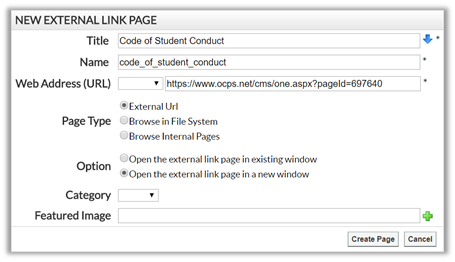
Don’t include http:// or https:// in both places or the user will encounter an error when they click on the link.
Using a whole content page to simply link to another page within your site:
Another thing we have seen as we look through the both the district and school pages is the use a content page in which the content is nothing more than a link to another page either within OCPS but more often external to OCPS. One of several similar situations I saw through all the sites I looked at was a page named Curriculum Guide which had nothing more than a link on the page to the curriculum guide which happened to be a PDF files stored in the site’s File Manager. In this case, it would have been better to create an external link page under the parent page that pointed to the PDF directly as shown in the following figure.
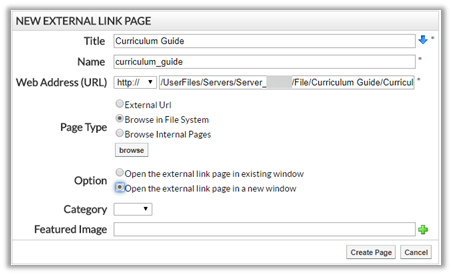
Note that the Page Type is set to: Browse in File System because that is where the file has been stored and the Option:
Open the external link page in a new window has been selected because the link is to a PDF file.
Referencing a single page on your web site from multiple menus:
A third variation that we have seen is a site which repeats the same exact page in two or more branches of its menu hierarchy. In this case, it was a reference to Grading Schedule at a school and the same page was reproduced under Students, Parents, and Academics. While it is not specifically wrong to create the same page multiple times within a site, it is potentially a problem if a change is ever made to one or more of the pages, but not all of them. In that case, you would have an inconsistency in the information presented to parents, students, and the public. They would wonder which one is right. Of course, they would argue for the version that was in their favor even if it was on the page that was not updated. In situations like this, it is better to have a single master version of the page and then all other references to the same content should use an external link page pointing to that master copy. This way, when a change is made to the master copy of the page, all ‘pages’ are automatically updated. In fact, we have done this for the extracurricular activities page on middle and high school sites. The master page in this case was placed under the Clubs menu. Then we placed external links to this page in both the Athletics menu and the School Information menus.
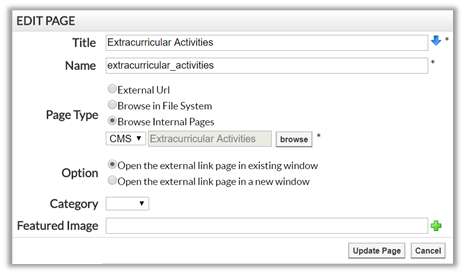
Note that the Page Type is set to: Browse Internal Pages because we want to ‘reuse’ a page that already exists in the site, and the Option:
Open the external link page in existing window has been selected because the link is to just another page in your site.
Hope this helps you understand a little better how you can use External Link Pages rather than Content Pages on your site.