

A Brief Introduction on How to Use the News Aggregator on Your School Home Page
This document explains the steps needed to add (and edit) news stories that appear in the Recent News section of your School’s home page.
- Go to your school’s home page.
- Make sure you are logged in and have administrator rights.
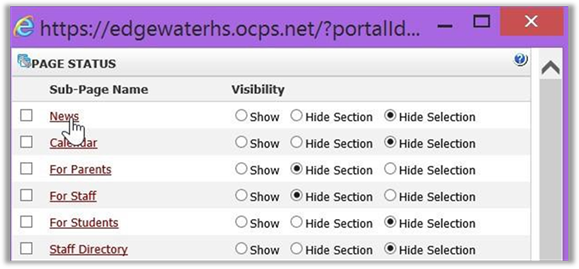
- In the Portal’s menu bar at the top of the screen, open the Page Options menu and select Page Status.
- Find the Sub-Page named News and click on it. This is how you edit any page that is hidden from the interface or one that is still in draft mode and has not yet been published.
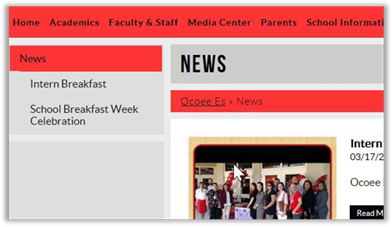
- If the News page opens in a small window, expand the window to fill your screen (or most of it). Next, look in the left navigation under the News Heading. The entries here show previously posted news articles. For example, in the following image, there are two news entries: Intern Breakfast and School Breakfast Week Celebration. Of course, your website may show many more previously posted news articles. These are the active news posts that can possibly appear on the school’s home page. If this list becomes excessively long, it probably means that you have not set the Expiry Date for your news stories. More on this feature later. While each news item has its own start and end date for publication, the render template controls how many recent news items are displayed in the Data Summary portlet.
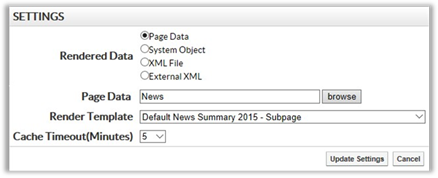
- If you have previously posted news pages, you will see summaries on the right side of the News page as well as navigation links to each individual news page on the left side of the screen as shown above. The display of the story summaries is generated from the full news story pages by using the Data Summary portlet. It has properties that point to the Page Data: News (This is a News Section Page. A News Section Page does not actually contain any news story. Rather, it serves as a container under which all the News Content Pages appear. When used with the Data Summary portlet, the portlet only can ‘see’ the News Content Pages within the News Section page. The News Section Page is generally hidden from the menu).
- The Data Summary portlet also used the Rendered Data type: (Page Data) and the Render Template: (Default News Summary 2015 – Subpage or Default News Summary 2015) to control how to display the news stories. The Cache Timeout defines how often the Data Summary goes out to the News Section Page to update which stories should be displayed. In most cases, 15 minutes is recommended for school websites to minimize the load on the webserver. Also, consider that school news does not change as frequently as say the news on MSN or other websites where a more frequent refresh is necessary.
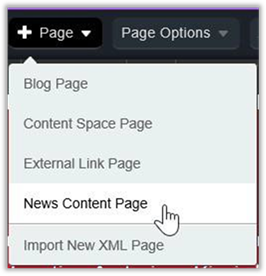
- To add a new news story, open the +Page menu and select News Content Page. (Note, a News Content Page only makes sense when creating a new page beneath a News Section Page.
- Provide a title for the page (usually the story name). Then click the blue arrow to let the system generate the page name (which automatically removes invalid characters from the Title text replacing them with an underscore ‘_’ and replaces capital letters with lower case letters). The Title entered here will be used as the page name in the dropdown and navigation menus on the site as well as being displayed above the editable portion of the page. It is also used as the default <h2> for the page.
- The Page Owner defaults to the person adding the News Content page. We currently do not use the Icon or Category feature for pages. While you can define a Featured Image here, I have found that it acceptable to define the featured image in the Page Content dialog a little later. Do not make any other changes to these fields in this dialog. Simply click the Create Page button.
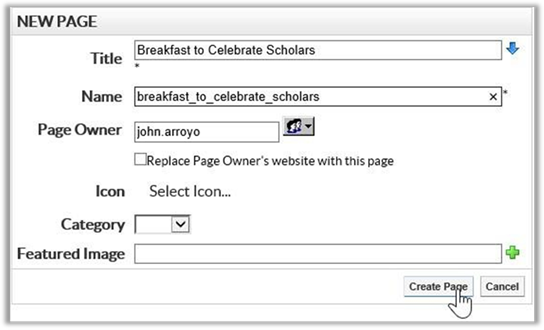
- The next page is divided into sections. The first section repeats the information entered in the prior dialog. You do not need to make changes to the Page Properties section.
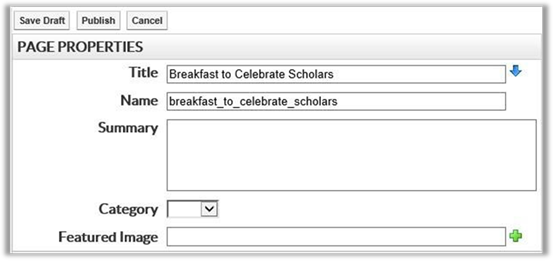
-
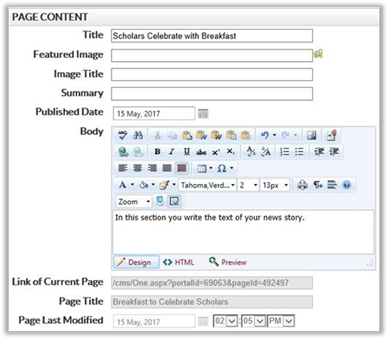
In the Page Content area, add a title for the story along with a featured image. This Title property is different than the one in the Page Properties as it is the title used by the Data Summary portlet at the start of each news item as well as the title at the top of the individual news item page. Note that the title here defaults to the page title but does not have to be the same. In fact, there is a strong argument for keeping the Title in the Page Properties short because it appears in the menus and the Title in the Page Content can be longer and more descriptive. This title is also used when displaying the news stories in the Data Summary portlet.
- Similarly, the Featured Image defined here is the image displayed in the Data Summary when news is rendered on the school home page or on the News page. It is also used in the upper left corner of the generated news page along with the information entered in the Body field of this dialog. Oddly enough, the Image Title field is used here as the image’s Alt-text. When the full news story is displayed, the alt text currently does not appear. However, by looking at the HTML of the page, you can confirm that the alt text is there and that it comes from the Image Title field. It is therefore required by ADA which states that all images that are not decorative must have alt-text to describe the image to the visually impaired.
- Never use a decorative image here. While not required, a featured image should therefore be relevant to the story. Note that this image is automatically resized to be 220 pixels wide on the News story page, 200 pixels wide on the News page, and about 280 pixels wide on the School site home page. This resizing is performed automatically by the system. For best results, you should pre-size your news story images to be between 280 and 300 pixels wide to reduce distortion when they are displayed and to reduce the load on the web server trying to resize the image. The Summary field is the ‘teaser’ line that encourages visitors to the site to click on the image and/or text to view the rest of the content as defined in the body field as a separate page.
-
The publish date should in most cases be the current date, but you can create a news item that publish on a different date. Note, the publish date for the page should always be provided.
- In the body section, create the text of the story. While it is recommended that you create the text here, you can create it in Microsoft Word or other word processing software and then copy and paste the text here using the Paste Plain Text button to strip out formatting the other word processor embeds in the text. Never copy and paste text or images directly from any other source. Always format the text within the portal page editor to ensure that the formatting is compatible with the Presence system.
- The other fields at the bottom of this section are automatically filled in by the system.
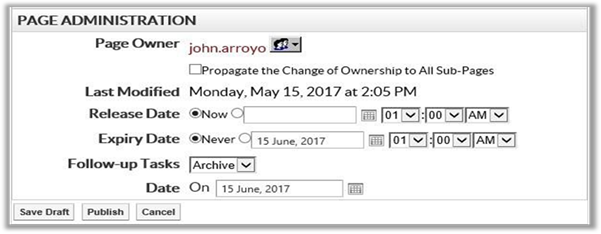
- In the Page Administration section, you can specify when to release the story which defaults to NOW, but you can release a story later. You can also specify the Expiry Date of the story rather than default to Never. This is the date when the story is removed from the Recent News stories on your home page and any other place where the Data Summary aggregates these news pages. Typically, a story should not be in recent news for longer than a month and for high schools, perhaps no more than a week or two. Otherwise, it is not really recent.
When providing an Expiry Date, you can specify a follow up action such as:
None – This option imply turns off the news page from being included in the Data Summary portlet after the Expiry Date has been reached.
Review – Used for stories that may need to last longer but may require updating with more recent information. This option sends an email to the Page Owner to review the page when the Expiry Date is reached.
Archive – Used with stories that you want to automatically remove from the active portal at the Expiry Date.
Move – Used to move stories from the News folder to another folder, perhaps an Archived News folder where another news aggregator page may display a history of older news items.
-
 When you are done, click the Publish button to save your page/story and make it available to site visitors. You will be asked whether you want to change the page status from Hidden to Publish. If the story is ready to go, click Yes to publish.

-
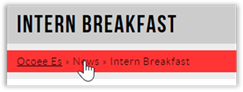
Your story will now appear on the News page summary. You can always go back and edit the page if you forgot something. You can also use the breadcrumbs to return to the News page to add another story.
- If you are done, click in your school header (upper left corner with your school’s name) to return to the school site’s home page.
- If you want to manually remove a story from News (because you did not supply an Expiry date), navigate to the News page like described above and open the Page Options menu. Select the Page Status option. Click the checkbox to the left of the story/page name to select it and then click the Archive button at the bottom of the dialog. To edit the news story, click the purple eye to the far right of the page name.
I hope that helps most of you get through the creating and maintaining of your Recent News. If you have additional questions, you can email: presence@ocps.net
or call 1-800-920-3897 for immediate assistance.