

Adding Images to a Page:
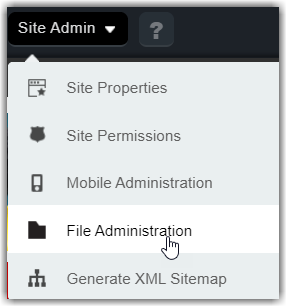
All images should be added to a page after uploading the image to the Image folder. First select File Administration under the Site Administration dropdown menu.
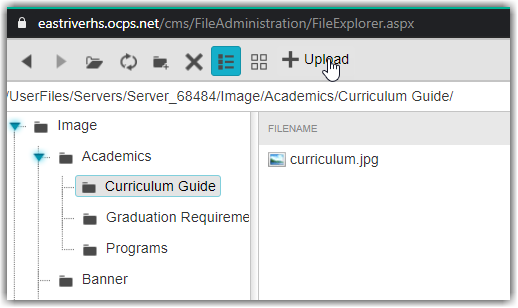
Then navigate to the folder where you want to store the image. Note that the first level of folders under the Image folder should parallel the menu options across the top of your school site. (Or at least it did at one time.) You can create subfolders for new pages using the fifth icon in the menu bar from the left. Then click the upload button to open the dialog that lets you select one or more images files to upload into the selected folder.
You can also get to this same point when you are in edit mode of a content portlet on your page by clicking the Image Manager button as shown below.
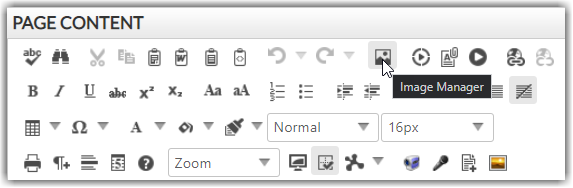
If you are in the content portlet, after you upload the image, select it to insert it into the content portlet at the current cursor position.
Why do this? Why not just drag and drop or copy and paste the image from another source? If you copy and paste the image, it will appear to work, however, it will paste the binary code for the image into the content portlet’s HTML making it very difficult to edit the page’s HTML for other issues such as ADA corrections especially if there are several images on the page. In addition, posting the image in the content area increases the page size making it take longer to display and to load when editing. At an extreme, it can cause the page to fail to load properly when the network is slow.
On the other hand, using the Image Manager to upload and then reference an image stored on the File Manager server reduces the page HTML overhead and helps the page load faster. In addition, images stored on the File Manager can be cached. This means they are stored in a special place in the server memory so they can be reused on other pages or by other users referencing the same page. Cached images improve page performance.
Security of Images and Files Stored in the File Manager
If you have ever tried to go to one of the district’s intranet pages, you know that you must be a validated OCPS user before you can see any of this content. That is in fact the definition of an intranet site. Only employees of an organization should be able to see the content on those pages. But what about the images and files (PDFs) that are stored in the File Manager for intranet pages. Are they secure as well?
Unfortunately, no!
The security to get to the images and files in the File Manager, even those used by the intranet, do not obey the same security rules as the intranet pages themselves. Why not? The simple answer is that the File Manager’s files and the intranet’s pages are stored on different servers and only the server with the intranet pages validates user access against AD (Active Directory) accounts. So, anyone can access images and PDFs referenced from an intranet page? Yes, but there is one thing they need to know first. They need to know the URL of the image or PDF to reference the file from outside of the intranet page itself. While not difficult, I will not detail that process here. Just take my word for it. It is easy. The point being that if you have information that might be considered confidential, it should NOT be stored in the Presence File Manager.
So how do you protect confidential data? There are two alternatives I can think of. One is store them in your district SharePoint collaboration site. These sites can be shared to all OCPS staff using READ access only. Another option would be to use either the document container web part from Presence to store the PDF or the Image Gallery for images (or similar web portlets). Since you can only access the contents of these web portlets by editing the web page they are on, this by default will prevent non-OCPS employees from getting to these files without first logging into the intranet to display the pages they are on.