

Footer Information
Every school has a footer banner across the bottom of every page. It includes the school’s physical address, main telephone number, fax number, and general email address. It also references the EEO statement found on the district’s legal site. All this information is managed by the district. If you believe any of this information is incorrect and needs to be updated, please contact the district offices at presence@ocps.net with your school name and what the changes should be. In order to avoid any questions or confusion, the email must be sent from either your school principal or one of your assistant principals or deans. Do not attempt to make changes to the banner yourself.
In addition, this means, there is no need for you to repeat the school address, main phone number, fax number, general email address, or EEO statement on any of your school pages as any changes to these items reported to the district are only updated in the page footers, not in other pages of your site. This is also important to the EEO Statement that resides on the Legal Department site. The district is not responsible for finding duplicate occurrences of the EEO statement on school or department sites and updating them when the information within the EEO statement changes.
Social Media Information
In addition to this information, the school pages have in their page headers and footers icons that represent the following social media platforms:
- Youtube
Many schools have taken advantage of this feature. However, again, to initiate these icons, you must send the URL of the main page for your school for each of these social media platforms. Send any updates or changes to presence@ocps.net. An example of a school footer with all four of these icons activated would look like the following:
Header:

Footer:

Note that these social media platforms are not a replacement for Recent News articles that should be created as News Content Pages under the hidden News page.
School Rotating Banner
I have recently noticed several schools have changed the maximum height and maximum width of the school rotating banner rather than correctly sizing the images they upload into the banner. This is not allowed because the rotating banner web part was specifically sized to fit into the page layout design for the school home pages. Take for example the following school that changed the rotating banner to allow for images that were 1360-pixels wide by 710-pixels high.
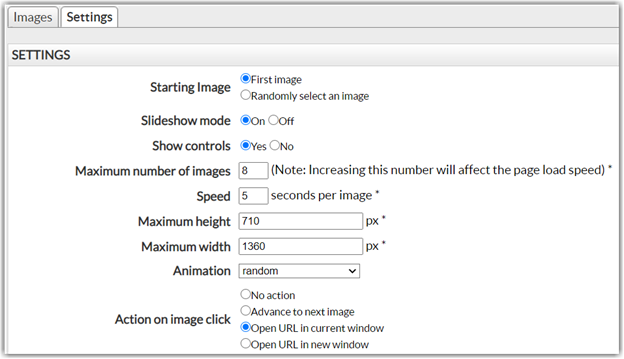
This will at the very least distort the page layout and may cause the content under the rotating banner to ‘jump’ up and down as the images change. The reason is that the portlet attempts to resize the uploaded image to fit into the maximum width possible. In the above case, can never be wider than 1360-pixels. Of course, the page layout does not allow an image to be wider than 680-pixels in any case or half of what was specified here. It then resizes proportionally the image height. This may be less than or greater than 710-pixels. The result is either an image that if not correctly sized in the first place could either be truncated or will cause the page to jump up and down as images change.
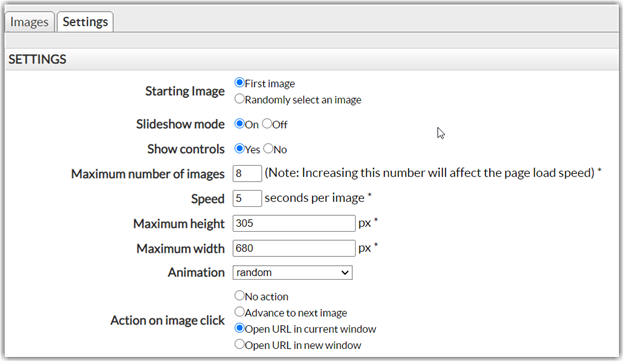
When this is found by the district administrators, the rotating banner is reset back to the correct 680-pixels wide by 305-pixels high. If your picture is not exactly this size, what happens. As previously stated, the portlet will attempt to resize the width to be no more than 680-pixels wide (although if the original is less, it will not change it) and then it proportionally resizes the height. If the resized height is less than 305-pixels, there will appear to be a gap across the bottom of the image but the page will not bounce because the calendar portlet should hold the rest of the page in place. However, if the image is greater than 305-pixels, it will extend down pushing all of the lower text down which causes the page to appear to bounce up and down when you are trying to read content in the lower portion of the page.
Therefore, the district sets the rotating banner height to 305 pixels to prevent this vertical bounce.
The web editors are responsible for designing their uploaded images to fit in the 680 x 305-pixel rectangular area. They can also have multiple of that size. For example, a 1360-pixel wide by 610-pixel high image will work perfectly because it will be resized back down to 680 by 305. The original image does not have to be an integer multiple of this size either. For example, a 1020-pixel by 457-pixel image also works as does an 1190-pixel by 534-pixel image. While many graphics programs allow you to resize images, you might want to consider these steps:
- Determine what is important in the image. If there is a lot of sky, grass, or side content on the image, you may want to consider cropping your image first to keep only the most important parts. You may even be able to crop the picture to end up with a multiple of the 680 x 305 requirement. If you do, you will be done.
- If your image is too narrow, you may want to ‘paste’ the image on a larger colored square to effectively ‘widen’ the image. Also, if it is too short, a similar pasting of the image on a larger color square can help fill in the ‘blank’ space of the image when it is resized to 680 x 305.
Resizing images has been discussed in previous posts. Use the search feature to locate and read them.
Finally, the 2020 Census is officially over. Please remove the banner and link from your rotating banner.