

As I have been going through many of the district and school sites, I have noticed several reoccurring problems.
Use External Link References Rather Than Duplicating Pages
I’ve seen several cases were the content for a page was duplicated exactly, or nearly exactly on another page within the same site (department or school). Not only is this a waste of time, but it explains why I said ‘nearly exactly’ in the previous sentence. When you repeat the same content on two or more pages, the chances are high that at some point, one page may receive updates while the other page(s) do not. This inconsistency leads to confusion for visitors to your site. There is another problem, however. When one page has errors, especially ADA errors, those errors are duplicated raising the number of non-compliance issues for your site. These could be cause by broken links (see other comments below), improper formatting, bad grammar (See grammar section). This translate into additional time ‘fixing’ the same issues on multiple pages and well as reducing the overall accessibility rating of your site. Therefore, rather than duplicating the page in another location or menu, use a hyperlink to the other page or use the External Link Page (which is a kind of hyperlink if you think about it) to give the viewer the same experience, but without physically duplicating pages. The following image shows the External Link Page dialog box.
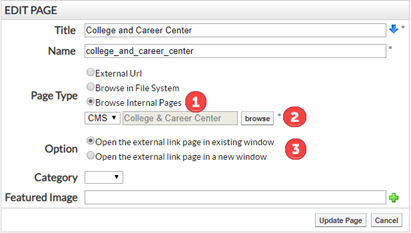
- Choose the Browse Internal Pages for another page on your site that has the single source of the content.
- Use the browse button to navigate through the pages on your site to find the single source of content.
- Open web pages from your site in the existing window. Open PDF files and pages from outside of your site in a new window.
Archive Pages That are Not Needed
Another thing I’ve seen on several sites is that some editors are merely marking pages they no long need as hidden from menus. Note however, this means that pages can still be found by search engines such as Google and Bing. More importantly, any accessibility issues on those pages is still reported in the accessibility reports for your site affecting your overall rating. If the page is no longer needed, such as a page with content from a prior school year, archive it. It is always possible to retrieve a page from archive if you really must go back to it at a future time. However, archived pages are generally not reported on or found by search engines. Hiding a page from menus is a feature that is used to keep a page out the navigation structure but still allow internal hyperlinks to find and display the page.
‘LINK’ is Not an Adequate Tooltip
I’ve seen many pages in which the tooltip for a hyperlink merely says ‘link’ or the tooltip for an image merely says ‘image’. This does not meet ADA accessibility standards. Tooltips must be meaningful to help the vision impaired to know first that there is a link to click on (in the case of hyperlinks) and what that link is about or what that picture contributes to understanding the content on the page. The only exception is an image that appears merely as decoration and can be labelled that way as ‘Decoration’ or ‘Logo’. Please check all of your links to correct this deficiency because it will affect your ADA accessibility rating. Links for Email links also require ‘tooltip’ text which appear in the Title property.
Broken Links
And while we are talking about links, make sure the links are still valid. There are a tremendous number of broken links throughout the OCPS pages. Some of this is because the link redirected the user to a page on another site and that site has subsequently changed to eliminate, rename, or replace that page so that the old link goes nowhere. Don’t leave your site visitors hanging on a ‘File not found.’ Check all of your links regularly. If I find them, I will remove the broken link entirely. I will try to leave any image or text that was embedded in the link unless said image or text would be too confusing if left on the page without a valid link. Check all of your links periodically.
Hyperlink Colors
Never change the hyperlink colors for your site. The site’s CSS controls these colors at the site level. If you really feel the need to change the color of your hyperlink, contact me at presence@ocps.net with your request. Hyperlinks colors must also follow specific color contrast rules and a hyperlink actually must have 3 different colors/formats associated with it: hover, pressed, visited. Changing the color on your site as I’ve seen done eliminates these three variations violating ADA accessibility rules. If you have done this, please remove your color overrides.
Here are some common links for all schools to use:
Common Links for Documents: