

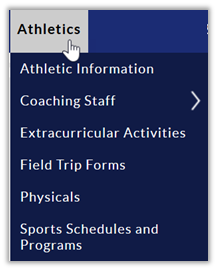
When you look at the top-level navigation in your school site or the side navigation in your department site, you may have a series of links as shown in the following two images:
For a School:
For a Department:

In either case, you add a new page by choosing your page type from the +Page dropdown menu available to all site editor/administrators
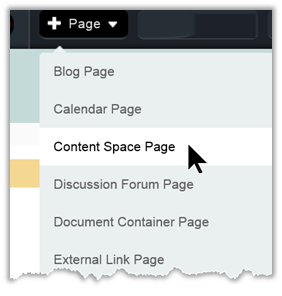
While defining the page, you will of course provide a unique page name. The page name must be unique within the school or department set of pages. Once the page is created, you can proceed to place content on the new page.
Pretty straight forward right? But what if you wanted to have a second reference to the same content from another place on your website? How would you do that? There are a few ways:
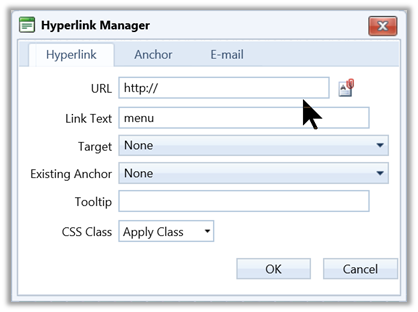
- You could place a hyperlink inside your content on another page. When defining the hyperlink, you must copy the URL of the page you want to link to and directly paste it in the URL field. Do not use the button to the right of the box. This will take you to the Document Manager, really the File Manager for files associated with your site like PDF files. Also as this is a link to another page within you site, make sure the Target is None. Finally, you must supply a Tooltip text string that tells the user what the link is about to do.
- If you want to create a second menu link to the same page, the best way to do this is with the External Link page. You can see the reference to an External Link Page in the prior image of the +Page dropdown menu. First navigate to the page in your site under which you want the new external link to appear. Then click +Page and select External Link. In this case, the dialog is a little different from the simple hyperlink menu.
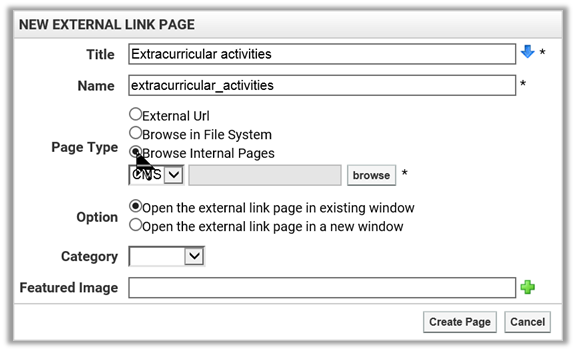
After supplying a Title and Name for the page, use the Page Type options to Browse Internal Pages. When the dialog refreshes and shows the CMS text box and the browse button, you can click the browse button to navigate through your site, find, and select the original page you created. Because this is just another page on your site, you want the Option: Open the external link page in existing window. Ignore the Category and Featured Image fields and click Create Page to create a external link.
This technique was used for all the middle and high schools to add the Extracurricular Activities page. The original page was created in almost all cases under Clubs & Organizations (the Page Link in the Navigation), but the links under Athletics and School Information were just external links to that original page. Why do that? So there would be only one source page to updated when need be rather than three separate pages which in this case makes maintenance easier and faster. It also ensures consistency in the content between all three pages. The rule is: Add content one time. Then link to that content as often as needed.
Ok, that’s it for today. Hope that make sense to everyone. If not, remember we have open labs the first Monday of every month held on the 5th floor of the ELC.