

In looking through the content on the OCPS websites, I find many PDFs that appear to have been documents scanned into a PDF format. Most likely, these documents were created by using your local printer and scanning the document to your email address rather than printing a copy of the document. This process creates a scanned image PDF of the document and emails it to you. A scanned image not only losses all text information, but it also loses all other ADA settings that the original document may have had. At the very least, text on the image is not readable by most screen readers unless they have an OCR component built in. So what can you do?
The current answer that I recommend is go back to the original Microsoft Word or other source document, fix accessibility issues there first and then recreate a new PDF. But what if you don’t have the source document anymore or cannot find it. Then the next best option is to run these PDF’s through Adobe Acrobat DC. I’ve talked about Adobe Acrobat DC before so I recommend you check out that discussion at: https://wordpress.ocps.net/presenceblog/how-to-check-your-pdf-for-accessiblity/
Suppose however, you already have a scanned document that was published on your portal site. In Chrome, if you open the document on the portal and move your mouse toward the top of the screen, you will see a black bar across the top of the browser window. On the right side of this bar you should see several buttons.

The button with the down pointing arrow is the Download button. In Microsoft Edge, you may have to click on the document to display to black bar at the top and it displays a slightly different set of buttons on the right side:

The button that looks like 3.5″ floppy disk on the right side is the download button. Other browse may have other variations of this. After downloading the PDF file, open it in Adobe Acrobat DC as discussed in the previously referenced blog post and perform a Full Accessibility Check. For a scanned image document, you will see an error under the Document section that informs you that the document is an Image-only PDF,
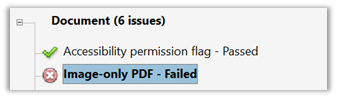
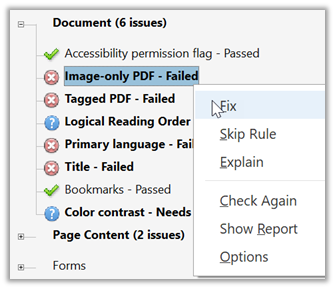
If you right-click on the error, the dropdown menu displays your options. First, let’s look at what the Explain option tells us about this error:
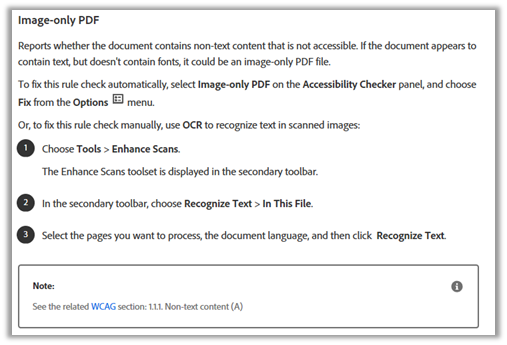
The first line tells us that a scanned image document is not accessible. However, there ‘may’ be a way to extract the text from the image and ‘fix’ the document to make it accessible by selecting the ‘Fix’ option. For simple documents, this may fix the problem. If not, you could also try a 3rd party OCR (Optical Character Reader) to convert the document. You could also try the steps listed in the Explain text to extract the text thus making the document readable.
The Fix option displays a dialog box with three configuration questions. For the first pass I will leave the Output as a Searchable Image. Another option you might choose for output is Editable Text and Images. This provides some access to images, but neither method is as accurate as working with the source document for the PDF and then recreating the PDF.
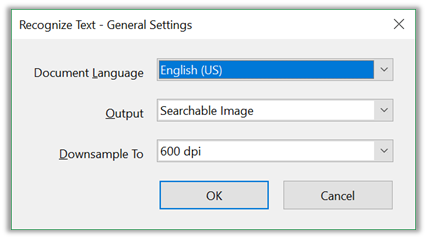
After clicking OK, you may still have to go through the document to fix other issues, but for simple documents, this may be all you need to create an accessible document when the document does not contain images, tables or lists. In that case, you can simply save and upload the new PDF replacing the PDF on your portal site.
However, if you have images, tables, or lists, you may need to open the document in Microsoft Word and use the Accessibility Checker to find and to identify issues such as missing alt-text, fix those issues and recreate the PDF replacing the original one loaded on your web site.
Sometimes, the images, tables, or lists do not convert cleanly in either Adobe Acrobat Pro DC or in Microsoft Word. In these cases, you may have to either replace the images with fresh versions or the images or recreate the document using just the text you were able to recover.
As you can see, the process of ‘fixing’ a PDF can go from simple to complex quickly. If you have the original source document, starting from that source to fix accessibility issues and recreate a PDF after addressing those issues is always the best choice. However, when you cannot find the original source document or it no longer exists, the goal then becomes to ‘fix’ as much as possible.