

Suppose you made some major mistakes in the current version of a web part on a page of your SchoolMessenger site and wanted to revert to a prior version rather than try to make edit changes to the current content to undo all the things that are wrong. You may be aware that there is a history for web parts (not for the entire page) that allows you to make a prior version of that web part live without affecting the other web parts on the page.
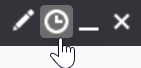
To do that, log into the page, select Design Mode and hover over the web part that you want to work with so that the black header appears. Then select the icon that looks like a clock on the right side of the black header to open the Version History dialog.
The Version History dialog shows each published version of the web part, when it was published, and by whom. On the right side of the line are two links. The Preview link displays what the current web part looked like in that version. You can use this if you are not sure of how many versions you must go back to get a version to undo the changes that you are trying to remove. Once identified, click the Make Live link to display that version.
If you simply close Version History, the web part displays the content from the selected version. However, if you or anyone else attempts to edit the web part again, you may be surprised to find out that the content in the edit window appears to revert to the most recent version, not the version you set to be displayed.
To illustrate this, suppose your version history looked like the following image:
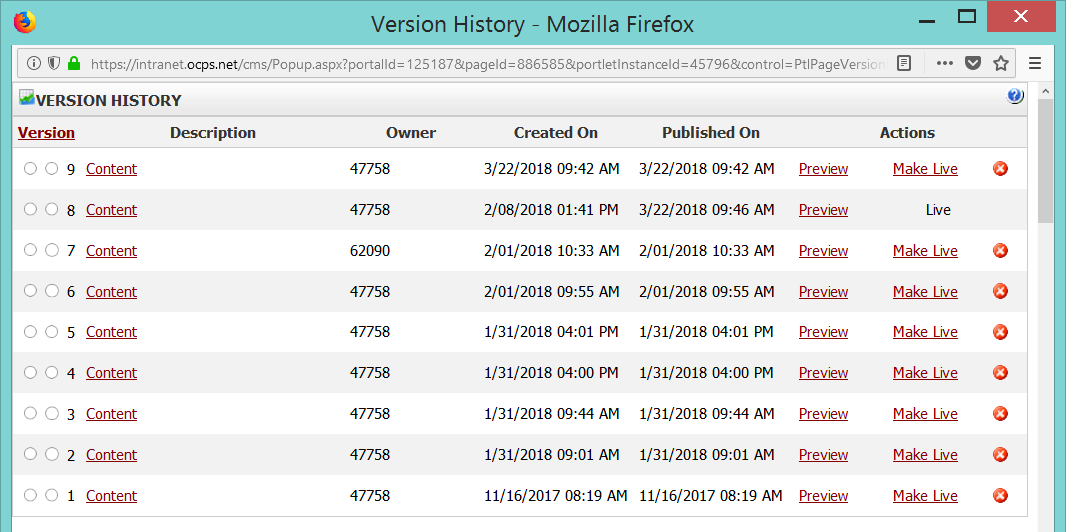
You can see that I have 9 versions of this web part since it was first created. If I wanted to go back to version 8, I can click the Make Live link for version 8 and then close the version history window. Version 8 now appears when I publish the web part but does not create a new version in version history. In fact, if you or anyone else edits the web part again, you will not get version 8 to edit, but version 9, the most recent version. If you are not aware of the differences between these two versions, you may inadvertently add back the mistakes you were attempting to eliminate when you made versions 8 live.
So how to you get around this behavior? The simple answer is that after you make version 8 the live version, you must delete any versions after that. So, in this example, I would need to delete version 9, the only version after 8, by clicking the red circle with the ‘X’ in it on the far right of version 9 as shown in the following figure
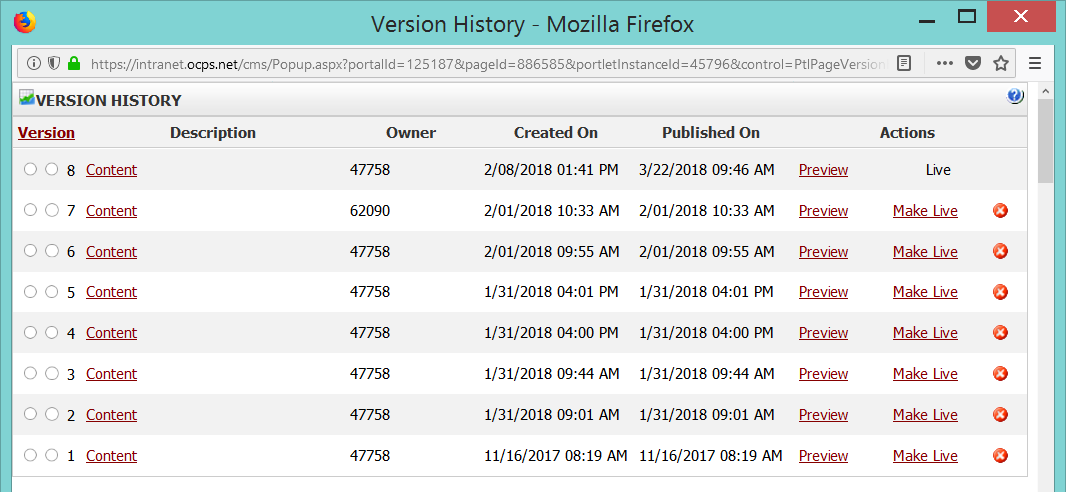
Now the most recent version of the web part is version 8 again so if you or anyone else edits the web part, you will be editing the version of the web part corresponding to the displayed content.
An interesting quirkiness to SchoolMessenger, but a necessary one for site admins/authors to understand.
Thanks go out to Jason Smith for tracking down this behavior.