

Have you entered your school’s calendar of events for the new school year yet? If so, great! You can stop reading here.
If not, here are some instructions and a file from which you can import the minimum basic school year events as shown on the OCPS School Calendar found at: The 2019-2020 District Calendar.
Steps:
-
Download the following CSV file and save on your local hard drive.
- Login into your school’s website.
-
Click on Full Calendar in the Upcoming Events section of your school web site’s home page

-
On the calendar, click on the plus sign (+). Note this opens a dropdown menu that lets you enter individual calendar events or import an event file.
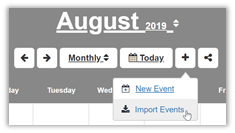
- Select Import Events
- In the dialog that appears, make sure the Conversion Type
is CSV File (Comma delimited) which should be the default - Click the Choose File button next to the label Source File. This opens the Open File dialog.
- Navigate the location where you downloaded the file from step 1, and select it.
- Click the Import Events button.
-
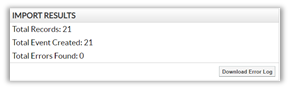
If everything loads into the calendar correctly, you should see the following message:
-
If a duplicate event name was encountered, that event will not be loaded and you will see the following dialog reporting errors.
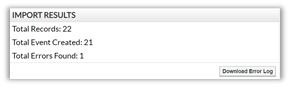
In this case, you will want to click the Download Error Log and open it in Excel to see which event(s) did not load.
Note that the event name must be exactly the same to be trapped as a duplicate. There is no AI (Artificial Intelligence) here. If you already have an event with the name: Start of School and you used the CSV file provided here which has the event First Day of School, both events will appear in your calendar because the system cannot determine that these are the same events with slightly different names. Should this happen, you can delete one of the events to solve the problem.
- Of course, at this point you can add other events to your calendar.