

This blog post will address by popular request how to use Monsido reports to fix broken links. I will assume that you already requested a Monsido password (note that this is NOT your OCPS password) to get into the reports for your site. If you have not, please send an email to presence@ocps.net with your name and the name of your site. Each school site and many departments have their own reports. However, depending on how your department site was created, you may not have reports for your department and may simply receive access to the general site report. Note that we currently are not scanning the Intranet pages.
When you log into Monsido, you should see which sites you have access to view reports. You may see only a single site such as your school, or you may see several sites. The image below shows what I see, but then, I see all sites.
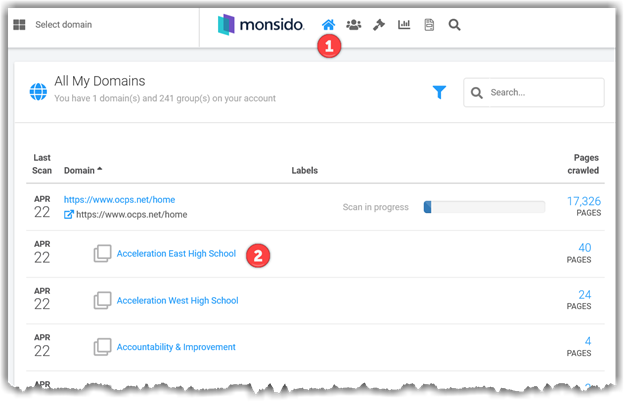
The home button (1) will always bring you back to this screen. The list of sites you can view reports for (2) includes not only the name of the site, but also the number of pages in the site (on the right side) and the date of the last scan of the site (on the left side). Note that changes made after this date will not appear until the next scan and that could be a week away.
To view the details for your site, click on the site name. You should now see a dashboard for your site, similar to the one below:
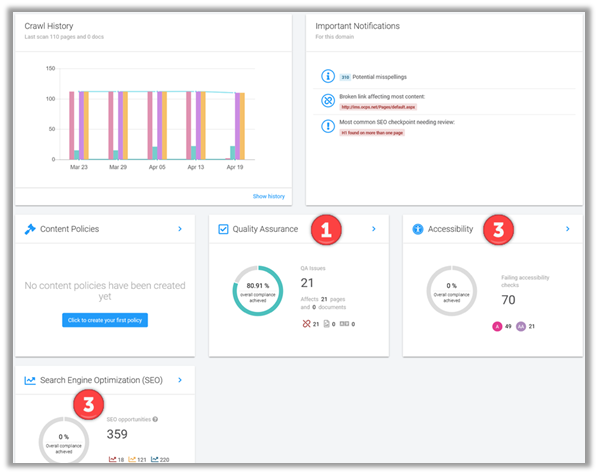
While the specifics of your dashboard will vary, there are three major sections you need to look at.
First is the Quality Assurance section (1). This section will help you fix broken links as well as spelling errors. I’m not sure how the overall compliance is calculated, but your goal is to fix all the broken links and spelling errors. The above shows that there are 21 broken links in the site’s pages, but that there are no documents (PDFs, Word Documents or Excel Documents) with broken links. Also there are no misspelled words. You may also have potential misspelled words. These are words that the system did not understand such as proper names, abbreviations, TLAs (Three Letter Acronyms), and actually misspelled words that it did not understand. If you mix languages (like English and Spanish) on the same page, the second language words may also appear here unless the text is properly marked with the other language (a topic for the future).
Second is the Accessibility section (2). You will want to spend time looking at these issues. I have written in past posts about possible false positives. Please check my prior posts for details. Many of the items listed in this section ask the user to review their content for the specific issue since Monsido does not have a way to definitively determine whether there is an error or not. Other items are definite ‘bugs’ that must be addressed. We will show to read this section in a future blog post. The goal here is to reduce the number of issues to zero (0) for both the level A and level AA issues. Level A are the most important and should be addressed first.
Third, the SEO (Search Engine Optimization) section (3) addresses many issues that affect the readability of the content. Again, this will be covered in more detail in a future post. While these issues may not directly affect accessibility issues as defined by the WCAG, they should still be looked at and resolved, but only after all the accessibility issues in section (2) are fixed.
So, back to Quality Assurance issues in section 1. To open the details, click the numbers at the bottom of the right-side column. For example, clicking the ’21’ in the above figure would open a screen much like the following that shows all of the broken links.
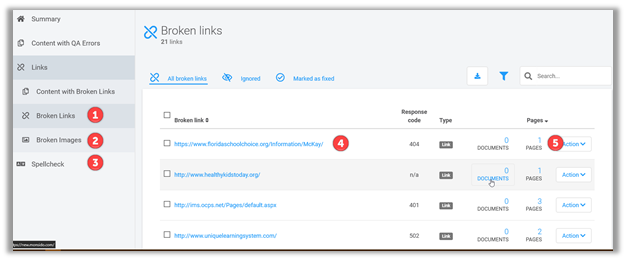
Note that in the left navigation, you can click on Broken Links (1) which are hyperlinks or Broken Images (2) which reference missing images. It is critical that you address both of these as quickly as possible. There is nothing worse on a webpage than clicking on a link that says file not found or an image that is missing and only displays a small box with than ‘x’ in it. Selecting either of these options displays a list of the corresponding broken links in the main part of the page. The text shown (4) is the link the page is trying to go to or the location of the image that cannot be found. You can click on these links to verify that the link really is broken and not just the result of the other site being down at the time the scan was run. Once you determine that the link is really broken, click on the page number (5) on the right side. This number tells you how many pages the broken link was found on and will open another window. Before looking at that window however, I want to give school editors a quick hint.
HINT: If the number of pages a broken link is found on is equal to the number of pages in your site, most likely, that link resides in one or more of the dropdown menus found at the top of your site.
In the above example, we know that the broken link occurs on a single page. Clicking on the ‘1’ opens the following window:
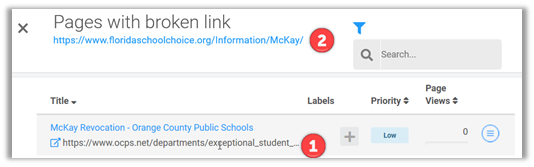
The list under the header “Title” displays the name and URL of the page (1) on which the broken link occurs. The URL at the top of the page is the broken link URL (2). Select the page URL and by using copy and paste, open that page in a new browser window. (Chrome users can multi-click the URL to select then entire URL and then right click to open the URL in a new window – Preferred).
Once you are on the page that has the error, you will have to find and correct it. This may take a little investigative work on your part to find where on the page the error occurs. You can try to hover over each link and compare the URL that appears in the bottom left corner of the browser with the one that is supposedly broken (at least you don’t have to click on each link). However, you may have a phantom link. This has been discussed before and occurs when someone selected the text that appears on the page for the link and delete it without also deleting the anchor tags that make up the link. Unless you are comfortable working in HTML, leave this to the professionals (send to Presence@ocps.net). For now, remove the entire line that has the link, re-enter the line and add the hyperlink to words that describe the link. Words like ‘Click here’, ‘link’, ‘click’ should never be used as the inner text (the text displayed to users). I also strongly recommend not putting the link in the text visible to the user. Most users have no use for that information. Rather, use a sentence like: ‘View our Student Code of Conduct‘.
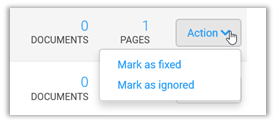
Once you have fixed the broken link, return to the prior page in Monsido that lists the broken links and mark that link as fixed. If you forget, it is really not big deal because the next scan will remove the referenced broken link as long as it has been fixed.
This information should help you fix broken links and broken images. A similar technique fixes spelling errors. Simply click in the right navigation: Spellcheck to open the subpages for this report. You should have very few (hopefully no) real spelling errors. However, you may have potentially misspelled words as mentioned before. You can open your content area of the referenced page of the misspelled word and use the built-in spell checker in Presence. Alternately, you can download and install a free program called: Grammarly (www.grammarly.com) to help you find and fix not only spelling errors, but also catch grammar errors and words that are correctly spelled, but the wrong word.
Also note as you go through your errors, that some pages are listed more than once.
- The URL with breakcrumbs:
- The URL with just the Page ID:
- The URL with the Page ID and the Portal ID:
You only need the fix any one of these references, not all two or three.
I hope this gets you started. In a future post, I will go through some of the major errors in the Accessibility section and how to address them.
Some false positives in the broken links section include links to OCPS lunch menus and Destiny that appear to involve multiple hops to get to the displayed site. These are interpreted as broken links. Try using the links in the following table for broken links or where you may have links to ‘older versions’ of the documents.
Common Links for Selected Web Pages:
Schools with no broken links at the time of publishing this post (4/29/2019):
- Acceleration East High School
- Apopka Elementary School
- Avalon Elementary School
- Bonneville Elementary School
- Brookshire Elementary School
- Camelot Elementary School
- Carver Middle School
- Castle Creek Elementary School
- Catalina Elementary School
- Cheney Elementary School
- Dillard Street Elementary School
- Dr. Phillips Elementary School
- Eagle Creek Elementary School
- Eccleston Elementary school
- Freedom Middle School
- Lake Como Elementary School
- Lakeville Elementary School
- Laureate Park Elementary School
- Lockhart Elementary School
- Lowell Elementary School
- Maxey Elementary School
- Moss Park Elementary School
- Pine Hills Elementary School
- Rock Lake Elementary School
- Sun Blaze Elementary School
- Sunridge Elementary School
- Thornbrooke Elementary School
Will your school be one the next ones on this list? Check your reports.