

Monsido classifies this issue as a Warning. It occurs when you include only a single item in a list. The procedure to check this error is:
- Check each OL or UL element in the content page referenced
- Count the number of LI elements contained by the OL or UL element (items within the list)
- If the OL or UL element contains only one LI element, then check if the LI element is really a list item
- If it is not really a list, then the LI element is being misused to format text.
Now, I have found instances where every single item in a list appeared within a separate OL list element that used the Start attribute to correctly number the steps. That practice is problematic for many reasons, but mainly because if you decided to insert a step at a later time, the numbering of all subsequent steps would have to be updated manually to account for the inserted step. It is much better to include all of the LI elements in a single OL element so that the browser automatically maintains the steps numbers.
(Note: OL elements are for ordered lists, numbered or lettered. UL elements are for unordered lists that use bullet or other symbols at the start of each list item. An ordered list implies a specific sequence of steps. An unordered list implies a series of mutually exclusive options that can be followed in any order.)
I have also seen cases where the single LI element really should be broken into two or more LI elements because each represented a separate ‘thought’ and doing so would eliminate the error flag during the next ADA scan.
But, what if you have a list of things that have a single item under one or more of these items. Should you have a numbered ordered list of ‘1’ item as shown in the following figure? What if you need to have that single item indented, but not numbered. That is the case in the following example that displays the location where the user must go to file a Declaration of Domicile.

Initially, the HTML code for the Comptroller’s Office location information looks like the following:
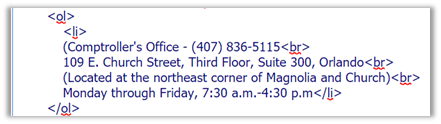
First we need to get rid of the OL and LI elements because we do not want to use a list. In fact, there is no need for the number ‘1’ at the beginning of the Comptroller’s Office information. Afterall, there is no number ‘2’. Next, we add a DIV element that envelops the Comptroller’s location information and ‘separates’ this content from the rest of the list. Once separated, we can format just the Comptroller’s location information. In this case, we want to indent the left margin to make it easier to read. The correct formatting of the information so that it remains indented but does not create a nested list uses the DIV element with a margin-left attribute of 40px to indent the block of text as shown in the next code block. Of course you can vary the pixel count to get the positioning you want.

(Notice, essentially the OL and LI tags are removed and replaced with DIV tags.)
The text now appears as shown in the following image:

There may be other variations of this technique where you do want to retain a number or a bullet (•) at the front of the text, but these are simple adaptations to what I’ve shown here