

As with links on a web page, links in a document must have alt-text. However, there is a major ‘gotcha’ which I’ll explain a little latter in this post. Let’s begin though by looking at what are some of the considerations when composing Alt-text for a link (hyperlink) on a page or Word document?
- Where is the link going?
- What will be viewed?
- What happens when someone clicks the link?
Let’s look at each of these questions one at a time.
Where is the link going?
You need to inform the user either in the visible text or the Alt-text where the browser will go when they click on the link. Simply saying: “Click here for more” is not adequate. More what? Will clicking on the link keep the user within the same family of pages within the current website? Will clicking on the link take the user to an entirely different web site? If the user is taken to an entirely different web site, how will they get back to your site when they are done? You might use the visible text in the document to tell the user where the link goes as in: “Click here to view our Extracurricular Activities.” Some recommendations go so far as to say that the entire sentence should be the link, not just the word ‘here’: “Click here to view our Extracurricular Activities.”
What will be viewed?
In the above example, we saw how to tell the user where the link will take them, but we did not tell them what they will find there. Will they find just a list of activities? Will they find detailed information about where and when the activities meet and who to contact about the activities? Will they find a form to register for those activities? Will they find requirements to join those activities? It does not really say. Therefore, a better link might be: “Click here to view a list of our Extracurricular Activities.” or “Click here to register for any of our Extracurricular Activities.”
What happens when someone clicks the link?
Some links open a new browser tab. Others replace the current contents with the new page. This can be important to know in case the user wants to get back to the page that had the link, especially when the link goes to a different site. Therefore, we might expand the text for our link as follows: “Click here to view a list of our Extracurricular Activities in a separate window.” Of course there is some difference between web pages and Word documents. For web pages, we recommend opening the linked content in a new page if the content is on a different website or if the content opens a Word document file. In a document, you can have internal and external links. An internal link essentially takes the user from one point in the document to another point in the same document (defined with bookmarks and hyperlinks to those bookmarks). Think of items in a Table of Contents in which each item is a link that takes you directly to the start of that topic within the document. An external link for a document is then any reference to other documents and/or websites. An example might be: “Click here to open a separate window displaying our Activities Registration Form.”
Examples
So how do you combine visible text with alt-text. Using the above examples, here are a few samples:
| Text | Alt-Text for Link |
| We offer a wide variety of extracurricular activities | Click here to view a list of our Extracurricular Activities |
| Register now for your favorite extracurricular activity | Click here to open our Activities Registration Form in a separate window |
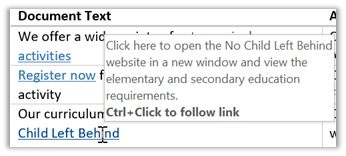
| Our curriculum meets the requirements of No Child Left Behind | Click here to open the No Child Left Behind website in a new window and view the elementary and secondary education requirements. |
It should be obvious from these examples, that alt-text requires some thought. It should augment the visible information about the link and not be a duplication of that information.
Adding Alt-Text to a Word Link
The training videos created by SchoolMessenger/West adequately cover adding alt-text to web page content and will not be repeated here. So how do you add alt-text to a link in a Word document. With the document open, select the text that will serve as the link, right click on the selected area and select Hyperlink from the context dropdown menu. This option opens the Insert Hyperlink dialog. Be sure to add the correct URL/Address where you want the hyperlink to go. Then click the ScreenTip button in the upper right corner.
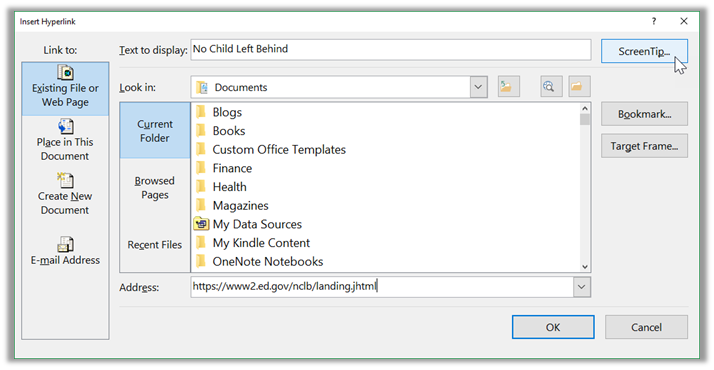
This button opens the Set Hyperlink ScreenTip dialog. Enter the text you want to appear when the user hovers the mouse over the link.
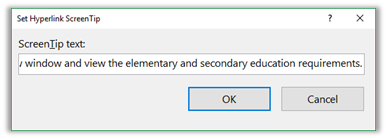
Click Ok to exit both dialog windows. Now when you point to the text (or a screen reader gets to this point in the document) the Alt-text either appears or a screen reader reads it the user.
Additional Tips
Some additional tips before wrapping up this series on making your Office documents accessible:
- You can download a free screen reader from https://www.mvaccess.org that works on the Microsoft Windows platform and is trusted and supported by Microsoft, Google, and Adobe.
- Repeated blank characters might be interpreted by screen readers that it has reached the end of the document and not read the rest of the content. Instead of using blanks for spacing between paragraphs, use Paragraph settings in Word to modify the spacing between paragraphs. Another trick is to enter the word ‘blank’ and change the font color to match the background so it ‘disappears’ for visual readers but allows screen readers to tell the person that the line or cell is blank.
- Accessibility is for everyone, OCPS and non-OCPS viewers of your site. It includes people with vision disabilities, hearing disabilities, hand-motion disabilities and even people with no disabilities. Don’t only think of the visual aspects of your site when you think accessibility.
- Standard fonts like Arial, Book Antigua, Georgia, Tahoma, Times New Roman, Trebuchet MS, and Verdana are most likely to be found on all machines and are the easiest to read. Avoid decorative fonts, script fonts or handwriting-like fonts.
- Don’t use color alone to indicate differences in an image or chart. Use color with symbols. This helps even people who can distinguish colors to better understand your content.
- Emphasize selected text with bold and italic, not color, all caps, or underlines.
- The Internet and YouTube is a huge resource on learning about accessibility.
The Big Gotcha
I said at the beginning of this post that there is a ‘gotcha’ in what I was going to say. That ‘gotcha’ is this. If you use your document as a Word document, the alt-text added to links as described above will appear when someone hovers their mouse over a link or image. While it is acceptable to post native Office documents on the intranet for internal use, you typically want to create a PDF version for documents that must be accessed from outside of OCPS because not everyone has a word processor compatible with Microsoft Word document formats. While in the next post I will take you through the steps of PDF files from your native Word Documents, one thing that does not appear to convert is Alt-Text for links. This is mentioned at several places on the Internet. Perhaps a future version will support Alt-text so for now I will still recommend that you create Word documents with Alt-text. But that also means that I will make my visible text for hyperlinks more descriptive and not rely on Alt-Text to augment the visible text to explain the hyperlink as I did in the first few paragraphs of this post.
I also looked at the Alt-Text for images coming from Microsoft Word and found a similar but slightly different issue. The Alt-text for images on a Word document converted to a PDF did not appear when opening the PDF with a recent browser and hovering over the image, but it did appear when using an older release of Internet Explorer 11. That implies that the Alt-text information is in the PDF, but cannot be accessed by more recent browsers for some reason.
So it appears that changes in the more recent browser versions have an issue with displaying Alt-text out of PDF files while older browsers at least display the Alt-text associated with images. At this time, I am not sure if this is a browser issue or an issue with the structure of the PDF.
For now, I recommend adding the Alt-text whether it appears or not because who knows, maybe the next version of your favorite browser will support it again.