

Working with links
When you enter a hyperlink within the content area of a page, the link has to surround either text or an image. (If not, the link is still checked whether it is valid or broken, but it is not visible on the page.) On many pages, I’ve seen the displayed text for the hyperlink to be the URL of the page or document of the link as shown below.
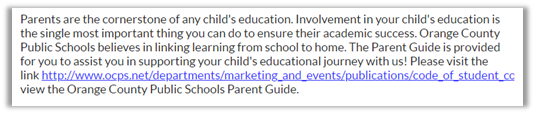
But do the visitors to your site really care about what the link is or would they be just as satisfied with just a reference to page or document name? I propose that the following alternate version of the same paragraph is more user friendly to the average reader. It tells the reader where the link goes in conversational terms rather than displaying the URL of the page which does not matter to the reader.

When possible, keep your links simple.
Related to hyperlinks is alt-text. Every link MUST have alt-text to help visitors using screen readers to understand what happens when they encounter a link a click on it. If the Alt-text belongs to an image whether it is a link or not, do not use the image or document filename as described above. Furthermore, do not include additional text that adds nothing to understanding what the image or document is about. For example, in the following image, what is #1249 in the alt-text? Does it add anything to understanding what the image is about.

Invisible ‘Phantom’ Broken Links
In the first paragraph, I mentioned that if the hyperlink does not surround other text or an image, it will still be a valid hyperlink, but it is invisible on the screen. Many people have reported broken links that they cannot find on a page. When I examine the HTML of the page, I often find something like the following:
<a href=”https://www.ocps.net/…></a>
Note that there is nothing between the <a> and </a> tags. However the link, defined with the HREF attribute is still considered a valid hyperlink even though it cannot be visually accessed on the resulting page.
How did this occur? Most likely, at some point an editor on the page tried to delete an image or a link that either was not needed anymore or was invalid. They selected the text or the image and pressed the DEL key to delete it. However, this action may not have included the open and close anchor tags (<a> and </a>). This left the broken link in the page with no way to visually access it. How do you insure that you do not leave broken links on pages? Simply right click on the image or text first and remove the link portion of the hyperlink. Then go back and delete the image or text. If you already have a ‘phantom’ broken link, the only way to fix it is to access the HTML and remove the anchor tags manually. If you do not feel comfortable working in HTML, ask someone who is to help you.