

Back on March 5, 2019, I mentioned that I had found several cases where a hyperlink appeared to have been edited by visually deleting the text associated with the link, but not deleting the actual link. I mentioned there that you should select the link and delete the link portion first. What does that mean really? If you have a text hyperlink, the easiest way to delete the link first is to right click anywhere in the link to show the dropdown menu as shown in the figure below There are two options, Properties and Remove Link. This first figure shows that you can click Remove Link to quickly delete the link but leave the text. You may want to use this option when you don’t know the actual link, but do not want to leave a broken link on the page.
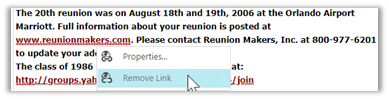
The second option would have you edit the Properties of the link. This method is really best when you want to replace the existing link with another known link. If you don’t know the correct link and merely want to remove the existing but broken link, you might think that you could just remove the text in the URL box:
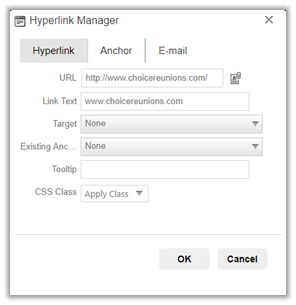
But this is awkward at best because even with the URL field blank, you cannot click OK without first providing a Tooltip! A more appropriate choice is to click anywhere within the link text and click the Remove Link button from the Edit toolbar. You can highlight the text first, but you do not have to.
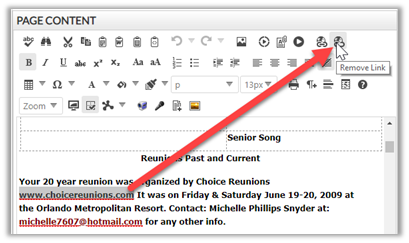
In fact, this latter method is the recommended way to remove a link from around an image. Click on the image and then select the Remove Link button.
Unfortunately, if you already have a phantom link on your page (a link that does not have a visual component), you will have to edit the HTML to remove the phantom link. Directly editing the HTML is not something you should do unless you know what you are doing. When you are not sure how to edit the HTML, ask someone else or send the page URL and the broken link text to presence@ocps.net