

Recently the question has come up how to place alt-text on the image displayed by news content pages in the Data Summary portlets. There is no property line for this image called: Alt-Text.

The ‘trick’ here is to remember that for image and even hyperlinks, the alt-text goes into an attribute called ‘TITLE’. When you create or edit the News Content page, look at the section: Page Content. As shown in the image below, a Featured Image was defined for the news article, but there was no Image Title supplied.
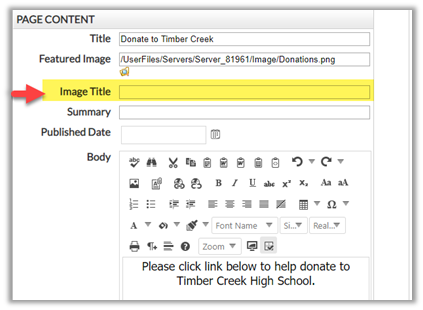
Simply add text to this property as you would for any image or hyperlink that requires alt-text such as the following:
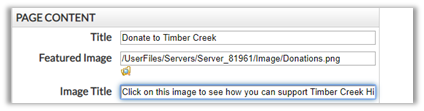
Publish your changes.
Now when you go back to the home page and check the Recent News you will see the alt-text when you hover over the image for the news story. Well, actually, you may have to wait a few minutes because this change is not reflected immediately. Changes to a news content page are only updated in the Data Summary portlet ever 1 to 15 minutes depending on the setting in the portlet properties. If you do not want to wait for the Data Summary portlet to refresh its contents, you can ‘trick’ the portlet into updating by going into Design Mode on the Home page (or where ever you placed the Data Summary portlet) and clicking the edit button (the pencil in the header) to display the Settings dialog
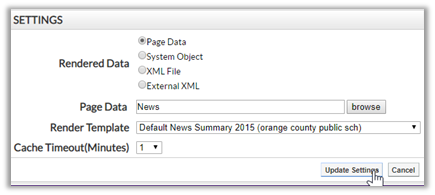
Then, without making any changes to any of the settings, simply click the Update Settings button in the bottom right corner of the dialog. This forces the portlet to refresh by going out to the select News Section page and reloading information from all the News Content pages beneath it. When you turn off Design Mode and hover over the news story image, you now see the Alt-Text for that image.

For district sites that may use the News Section Page, News Content Pages, and Data Summary portlet to view and select news articles, this process works exactly the same way.