

One of the requirements for accessibility is that hyperlinks have tooltip text that appears when the user either hovers over the link text or is read to the user if a screen reader is being used. However, when that hyperlink is an email address, there does not seem to be a way to specify the Tooltip text, at least at first. Therefore, hovering over these links may look like the following figure.

Creating or editing hyperlinks of any type typically involves opening the Hyperlink Manager dialog while editing the content in the Presence portal interface. Note that there are three types of hyperlinks. Each has a different purpose.
-
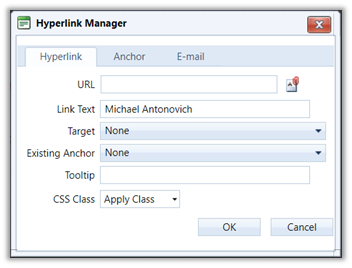
Hyperlink – This tab allows the user to jump to a different page either within the current site or to a page on an external site. The dialog has a separate property field for the Tooltip text as seen in the following figure.
-
Anchor – This tab allows the user to create jumps within a very long page from one place to another. While this link type is common in long Word documents and is associated most often with a Table of Contents, they are not as common on web pages because most web pages are not long enough to benefit from this feature. However, if your web page does extend to the equivalent of more than three printed pages, you might want to consider using anchor points in your page. Note that the anchor point does not require tooltip text. Rather the hyperlink that points to the anchor needs the tooltip text. This will be discussed in a separate blog post later.
-
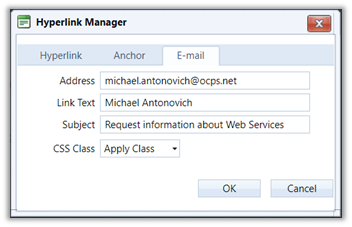
E-Mail – This tab allows you to create a link which when clicked opens the user’s email application. The properties included for e-mails include the Address of the person or group to which the email will be sent, the Link Text displayed on the page, and an optional Subject text. Note that the subject text can be beneficial to the person(s) receiving the email so the email can be classified and possibly routed to a separate folder. It also eliminates the need for the user to create a subject appropriate to the request. However, as you can see in the following figure, there is no property to define the tooltip text.
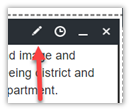
So in order to be ADA compliant (accessible to all), you should ask, how can I include tooltip text with e-mail links? The solution is to open the content portlet while in design mode for the page and click the pencil icon in the header of the portlet to open the content editor.
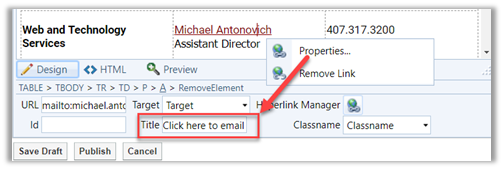
Then right click on the text of the e-mail hyperlink to select it and choose Properties from the dropdown menu that appears. This opens a properties panel at the bottom of the editor with several properties. The one that you need to update is the Title property entering the text that you want to appear as tooltip text as shown in the next figure.
Now when the page is Published and a user hovers over the e-mail hyperlink, the tooltip appears either above or below the link text as shown in this figure.

This simple trick only takes a few extra seconds and helps insure that your page is accessible to all viewers.