

Most webpage editors know how to add a basic email link on their website. But let’s start with an example content line that says the following:
If you have any questions concerning any of the OCPS guidelines, please address them by emailing: OCPS Presence Support.
Suppose our intent is to make the text “OCPS Presence Support” an email link. You might simply go into edit mode, select the text OCPS Presence Support, and click the Hyperlink button in the edit toolbar. This opens the Hyperlink Manager dialog as shown below.
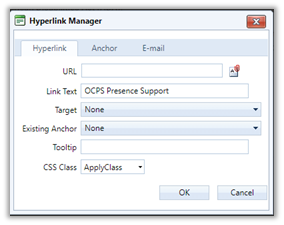
However, we do not want a standard hyperlink whose purpose is to jump to a different page in the current website or even a different website. Rather, we want to open the user’s default email application to send a message to someone. In this case, the text does not identify a specific individual, but rather a generic group referred to as OCPS Presence Support. To define the properties for email form, click on the tab E-mail instead of Hyperlink. The dialog now looks like the following:
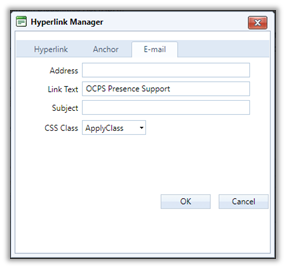
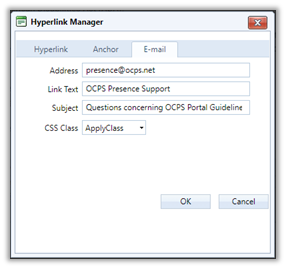
While the Link Text is carries over from the prior dialog, we must supply the email address to whom to send the email in the Address box at the top of the form. Without this information, an email form opens without any address in the TO: field. Most website guests will not know to whom to send the email. Therefore, we typically enter the email address to a person or a group in the Address box. This email address must not have the prefix ‘mailto:’ in front of the group or person email address. Think of how you define the TO: field when in Outlook or Gmail.
TIP: that it is possible to send to multiple people or groups if you separate each email address with a semi-colon.
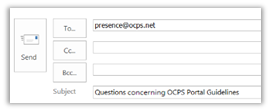
You could click OK and this would add a perfectly valid email link into your content. However, consider adding a Subject in the dialog. Just as within Outlook or Gmail, Subject text helps the email recipient to quickly identify the purpose of the email. In addition, many people use the Subject text to classify email and even redirect it into different folders. In this example, since the email was initiated from a line on the webpage that askes the viewer to send an email if they have any questions about the OCPS Portal Guidelines, an appropriate subject text might be: “Questions concerning OCPS Portal Guidelines”
You may have noticed that when defining a hyperlink to go to another page, the Hyperlink dialog includes a Tooltip property, but the E-mail dialog does not include a Tooltip property. So if a user hovers over the link, how would they know the purpose of the link or even that they were hovering over a link? The trick here is to notice that while you are still in edit mode of the content, you can click anywhere within the email link text and refer to the bottom of the window looking for the Title property. You can enter appropriate text here that screen readers can read to tell the visually impaired that they are hovering over a link that sends an email.
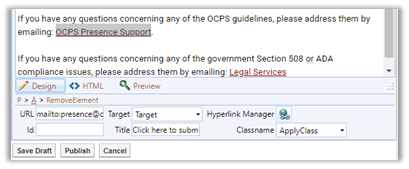
In this case, I have added the text: Click here to submit a local heat ticket. This text when read to the visually impaired person informs them that they are hovering over a link and what happens when they click on that link. Of course, the Tooltip is also visible to other users who hover over the link.
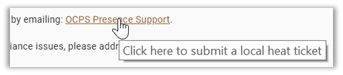
After saving the email link definition in the content portlet, you can test the link by clicking on it. You email application should open a blank email preaddressed to the correct person or group and include a common, consistent subject to help the recipient identify the email’s purpose and if desired, move that email to an appropriate folder with similar emails using a rule.
The only other comment I want to make here is to refrain from attempting to define your own colors for hyperlinks whether they go to another page, site, or an email. The District and SchoolMessenger defined a set of default colors to ensure color contrast ratios and consistency for district and school sites.