

A few quick guide to ADA requirements for tables:
-
Every table must have a caption (title). In HTML, it looks like this:
<table Border=”0″><caption>Cups of coffee consumed by each teacher per week</caption>
This is not the same as text that might appear above the table.
<strong>Cups of coffee consumed by principals per week</strong>
<table border=”0″>
….
</table
- Every table must have a single row of headers
- Every header row must have a text value for every column
- You must associate all cells in the table with the corresponding header for that column
- You cannot use merged or split cells
- While a table can consist of text rather than numbers, a table should not be used to format other content on the page.
Using SchoolMessenger’s editor for tables, these requirements are easy to meet. Using the figure below, let’s see how easy this is:
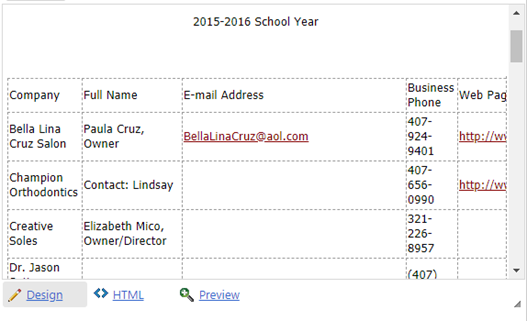
The above image shows a table of the Partners in Education for one of our schools (Yes, I know the data is old, but that is a different story.) Note that table has a single row of headers across the top with a value for each column header. Also notice that each of the cells has a single value, well sort of. They did combine the contact name with their title in a few cases. But the main point here is that there are no merged or split cells. To format this table, locate the table icon in the Edit menu and click the down arrow to the right of the grid image to open the dropdown. The last button in the bottom right is the Table Properties button. Click it.
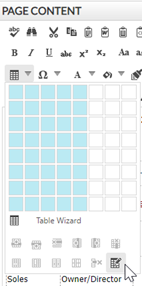
This button shows the user definable properties of the table. The first three tab pages contains properties related to the table rows and columns (Table Design), table dimensions and layout (Table Properties), and cell properties which lets you customize the appearance of the cells and the Accessibility tab. Clicking this last tab shows the properties below:
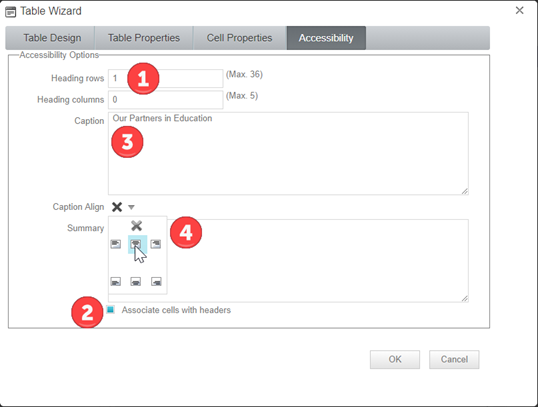
In Heading Rows (1), we type in a ‘1’ to select the first row as the headings row. It is also possible to create a table with a single column as a row header, but that is not as common so I will skip over that for now.
At the bottom of the screen is check box (2) which allow you to associate the cells in the table with the headers with a single click.
The Caption property (3) serves as the table title and using the Caption Align dropdown (4) lets you place the caption on the top, bottom, left, right or center of the table.
Partially hidden is the Summary field. When the table is very complex, you may need to supply a summary to explain the structure of the table. However, others believe that if the table structure is that complex, you would better serve the disabled who use screen readers by simplifying the table,
To summarize, creating an accessible table is partly a function of creating the correct table layout and partly a function of using the Table Wizard in SchoolMessenger’s editor. From within Microsoft Word, there is similar functionality by first creating a table layout. Then right-click in any cell and select table properties from the popup menu. Again, look for and open the Accessibility tab to access the properties.
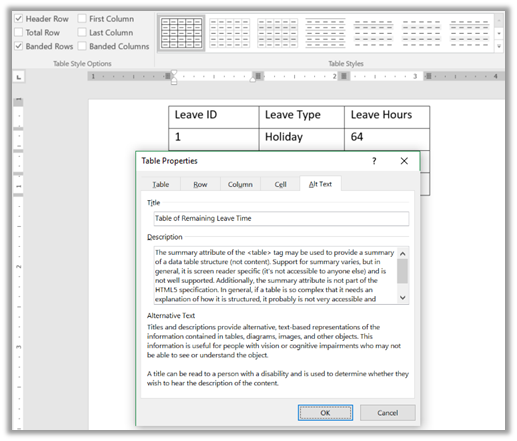
Table related Accessibility errors include:
Level A:
All layout tables make sense when linearized.
All data tables contain <th> elements
This error occurs for any table that does not contain <th> elements (headers)
All layout tables do not contain <th> elements
Use <thead> to group repeated table headers, <tfoot> for repeated table footers
Just like <tbody> groups <tr> and <td> definitions in the body of the table, <thead> groups <tr> and <th> definitions in headers
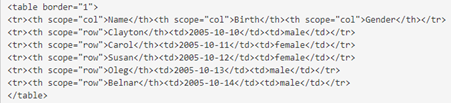
Data tables that contain both row and column headers use the <scope> attribute to identify cells.
All complex data tables have a summary
The summary is useful when the table has a complex structure (for example, when there are several sets of row or column headers, or when there are multiple groups of columns or rows). The summary may also be helpful for simple data tables that contain many columns or rows of data. Although many recommend simplifying the table.
All data table summaries describe navigation and structure of the table
Related to above.
Table captions identify the table
All data tables contain a <caption> unless the table is identified within the document
Data tables that contain more than one row/column of headers use the <id> and <headers> attributes to identify cells.
Best to avoid this complication by limiting tables to a single row and/or column header
Table summaries do not duplicate the table captions.