

Never Link to Microsoft Word, Excel, or PowerPoint Files
All Microsoft Word, Excel, and PowerPoint documents (which I refer to as Microsoft source files) should be saved as a PDF file. These should never be directly uploaded to your website because not all users may be able to download these document formats and read them. On the other hand, all modern browsers support PDF files. Therefore, if you have any Microsoft source files linked to webpages in your website, they would be replaced with PDF versions of these files.
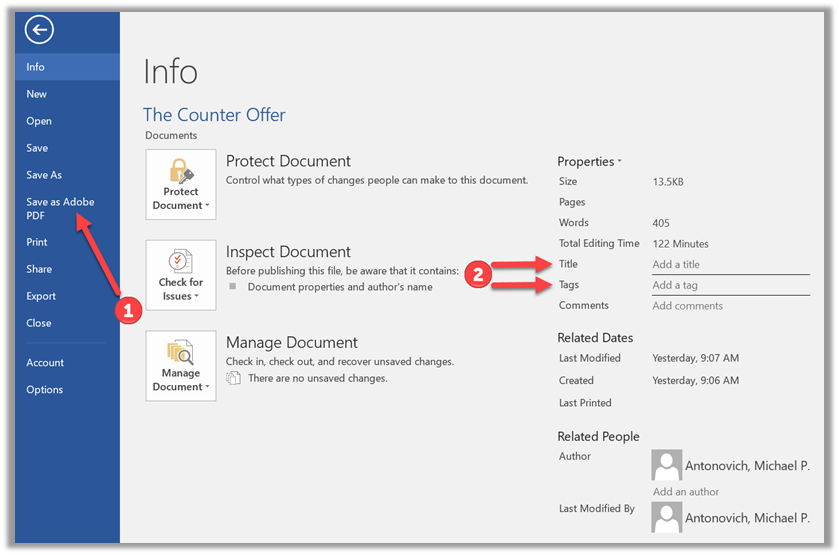
From Word, save your word file as a PDF by using the Create PDF button on the Acrobat ribbon.

or select Save as Adobe PDF (1) from the File menu. While you are on this page, it would be a good time to create a title for the document along with tags (2). A title should describe the document and not just repeat the title. However, this title does not get passed to the PDF document. Tags make finding documents easier and can also be used to classify documents. Tags become part of the document’s metadata, but are not the same as PDF tags. PDF tags are an extension of this concept.
PDF Tags
PDF tags provide structure to the content and are accessed by screen readers. Types of PDF tags include:
Container Elements – These are used to define a hierarchical grouping of other block-level elements and include: <div> and <sect>
Heading and Paragraph Elements – These include the generic paragraph <p> tags and Heading <h1> thru <h6>
Label and List Elements – List <li>, Label <lbl> and List Item Body <lBody> elements are block-level structural elements
Special Text Elements – These include non-block elements such as <blockquote>, <caption>, and <toc>
Table Elements – These include the <table>, <th>, <tr>, and <td> elements.
As you might guess PDF Tags are important for screen readers to determine the structure of the document when reading it. While they do inherently provide some formatting to the document to the visual reader of the document, their primary purpose is to impart structure to the document for screen readers.
So after you create the PDF, it should automatically open in Adobe Acrobat Pro DC. If it does not, save the PDF and then right-click on the file in File Explorer and select the Adobe Acrobat DC option to open it. Run the Adobe accessibility checker. You will probably get an error for the Title. Just right click on the error and supply a title for the PDF document. Remember that a title should describe the content, not just repeat the name of the document.
In most cases, the process of creating the PDF from the Word document will correctly insert the necessary tag for the internal content areas based on the formatting provided by Word. If not, you can always try the Autotag Document tool which should work.
Note: This automatic generation of tags will not occur if you just upload the Microsoft Word, Excel, or PowerPoint source document. This is another reason for always uploading only PDFs to be linked to your web pages.
Proper Use of Header Tags
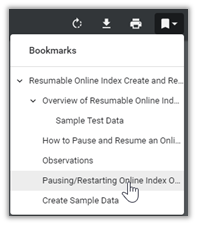
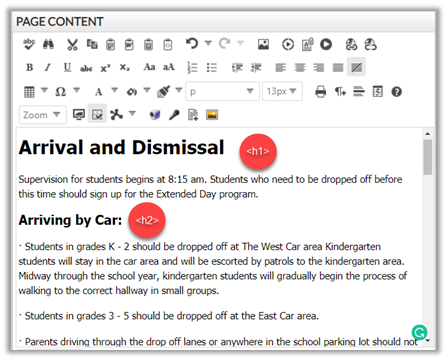
Header tags which consist of <h1> through <h6> are only to be used to define sections of a page or document, not to format that document. Header tags essentially define an outline of the document that screen readers can make available to users so they do not have to listen to the entire page being read when all they need is perhaps a small section of the page. You can also display this hierarchy or outline in navigation panes for Microsoft Word documents and PDF files. Some browsers such as Chrome provide a bookmark dropdown that displays the outline and lets you click on a topic to move directly to that place in the document.
The following image shows a page with the proper use of header tags which also provides some formatting (size and bold). However, remember that the main purpose of the header tags is to define sections of a document, especially larger documents, so users of screen readers can jump to the part of the document or page that is of interest to them.
Use Grammarly
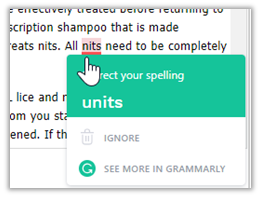
Grammarly is a free tool that you can download from: https://www.grammarly.com/ use for all of your writing, not just your webpage content. However, because they provide an add-in for Chrome browsers, it also function within the content editor panels of the Presence portal. For example, the following image shows that Grammarly has identified 15 errors (see the small red circle in the bottom right with a number in it). Errors can include both spelling and grammar issues. Each issue is marked with a red underline. Simply click on a highlighted word to get a recommended correction. You either select one of the recommended corrections or ignore the suggestion.
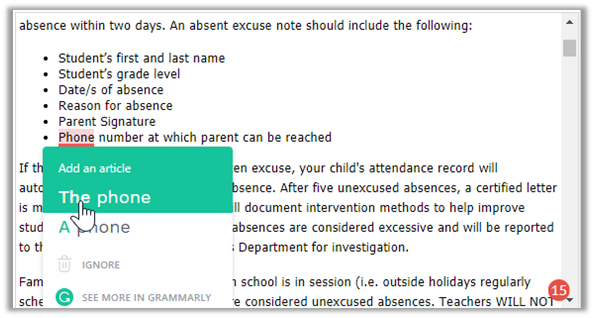
When it comes to spelling, not only does Grammarly catch the spelling error, but often can figure out what the word you wanted should be:
It is also quite useful for determining where hyphens should connect two words.
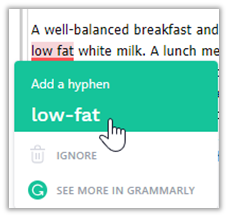
The number in the red circle will decrement each time a correction is made. When the number of errors reaches zero, the circle turns green with a ‘G’ in it.
There are browser extensions for Grammarly for Firefox, Chrome, and Microsoft Edge. The one for Microsoft Edge can be found in the Microsoft Store.