

When a page is being developed, if it is a new page, do not simply create the page and publish it without placing content on it. This results in a page that looks incomplete to visitors to the site.
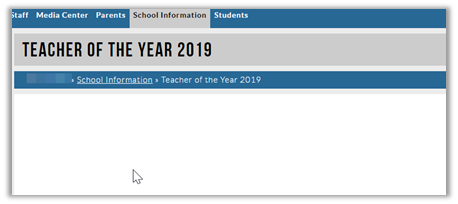
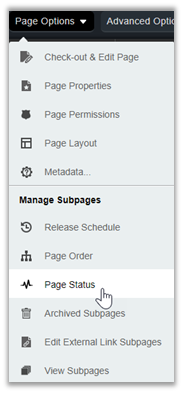
After creating a new page, go back to the parent of the new page (which in the above example would be School Information) and select Page Status from the Page Options dropdown menu.
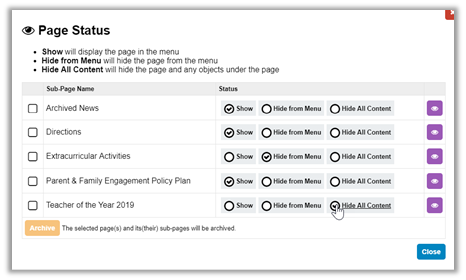
Then select the status: Hide All Content for the new page. This will hide the page from the navigation. As an editor of the site, you can still access the page by returning to the Page Status menu. The hidden page will still appear in the Page Status dialog. Find the hidden page title and select the purple ‘eye’ icon to the right of the hidden page to edit that page’s content.
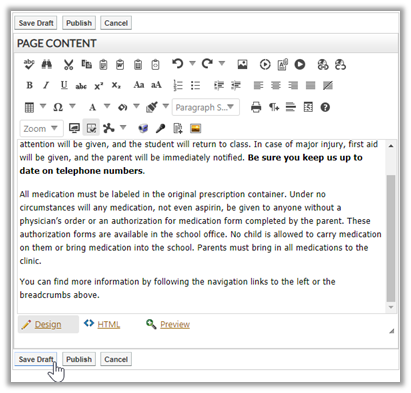
Similarly, if you are editing a page, you can save your content changes using the Save Draft button and turn Design Mode Off. This way, the previous page contents continues to appear but the system saves your changes. When you are ready to finish the changes, just return to the page and turn Design Mode On to pick up where you left off. Finish the changes and then click Publish.
The point to remember is to never publish a blank page.