

Image Alt-text
Image and link alt-text is extremely important to the visually impaired who cannot see either the picture or the link text (link text is what appears on the page). Often the alt-text is the only clue to these people to tell them what the picture or link is about. Try this simple test to determine if the alt-text you added to an image or link is sufficient. Close your eyes and repeat the alt-text to yourself. Does it make sense? Do you know the purpose of the image or the link? Take the following image as an example.
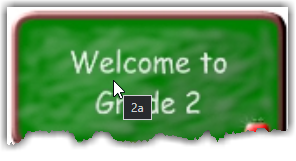
What if you could not see the image and the only thing you ‘heard’ was ‘2a’ when the screen reader got to that point on the page. Would you know what ‘2a’ meant? Would you even be able to guess that it had something to do with Grade 2? If you are being honest, the answer is probably, No!
If the image is important, the alt-text should describe it in enough detail that the visually-impaired site visitor has some idea what the image is about and why it is important to the other context of the page.
If the image is really a link, the alt-text should describe what happens when the user clicks on the image, perhaps even telling them to click the image to go to a specific page or site.
On the other hand, if the image is purely decoration and does not add to the understanding of the page, it could be considered decoration and be set to the null string. This must be done in the HTML and not through the programming interface of the portlet. Also, the title attribute should be omitted. Therefore, decorative images might have something like:
<img src=https://<<this is the URL to the image>> alt=””>
Hyperlink Alt-text
Now, look at the following four links on a different page. While the link text clearly defines what the link is, notice that the alt-text is not as helpful. In the example highlighted here, the alt-test for the Grade 2-5 link under Face-to-face is ff 25. Again, the test is to simply close your eyes and listen to the alt-text: ff 25. Would that have any meaning to you? I suspect that it would not. (Yes, for a text link, the Title property in the properties section at the bottom of the editor displays the text that will be used as the alt-text.)
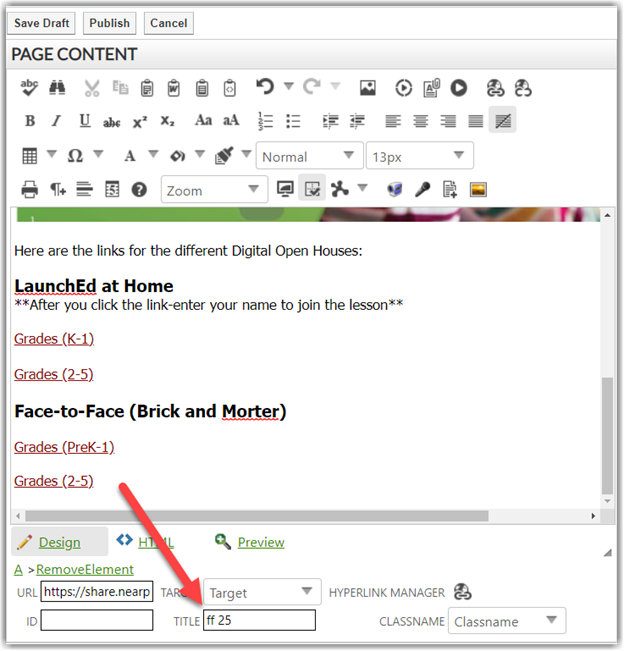
A much better choice for this link might be: Go to the Face-to-face document for grades 2-5. You could even change the Target to open the document in a new window.
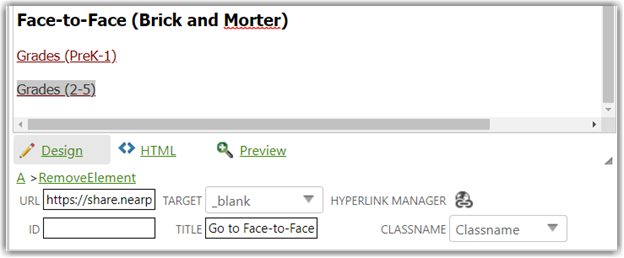
This brings up the following rule to make browsing easier for everyone.
Only attached PDF documents to a web page
When opening a link to a document (PDF) or linking to another site, open that document or site in a new window. If the user closes that document or site by clicking the close button in the upper right, they are still on your school site. They will not have to waste time navigating back to where they were before. This is a real discouraging thing to the visually impaired. When linking to other pages within your site, it is acceptable to open that page in the same window because you have not left your site.
Notice I said that the document is a PDF. It should always be a PDF. Never link to Microsoft Word, PowerPoint, or even Excel documents. Even if these are made accessible, not all mobile device users may have the ability to natively openly these documents. Do not tease them with a document that they cannot view. Of course, the resulting PDF must also be ADA compliant. If it is not, it could at some point in the future be removed to protect the district from accessibility lawsuits.
An Image Should Never Replace Text
Finally, an image such as the following should never have been added in place of just the text.
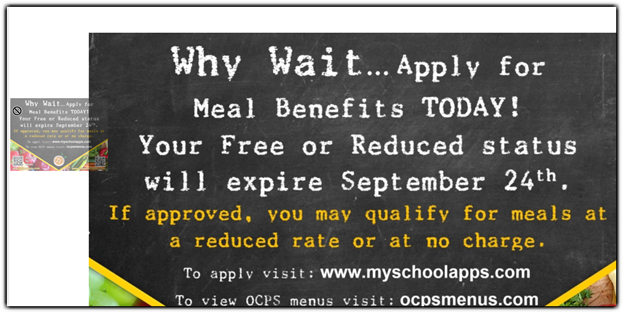
The important information here is all text and should have been entered as text, not an image so that not only would the vision-impaired be able to understand the text, but the links referenced in the text could (and should) be real functional links.
Note that the misuse of text on images that the visually impaired is not simply a requirement for images placed directly in content portlets. It also applies to the images used in rotating banners. Again, the district may decide to remove these without warning to protect the district from potential accessibility lawsuits.
Review your Edits
One last reminder for this blog. After you finish editing a page and save it, read through it carefully. Check that the links work properly. Check what the page looks like on a mobile device. What? You do not know how to do that?
When logged into a page, look for the screen image on the page:

When you click this icon, you have options across the top of the screen to view the page on a simulated mobile device, tablet device, or desktop. For mobile and tablet devices, you can even change from portrait to landscape. Check to make sure that image, text, tables, etc. are not truncated. Be aware that mobile devices may have limited horizontal scrolling ability. Next time, I will go into more detail about how to ‘fix’ this issue.
Good information. I learned more than I knew.