

Background
If you use an image that contains text that you want site visitors to read, that text must be included elsewhere on the page so that screen readers can read the text for the visually impaired and blind. In most cases, the image can be used as long as the image text also appears as alt-text for the image. In some cases, there is too much text to appear in the alt-text and the text may need to be displayed either alongside the image or in a separate link that is clearly identified as the text related to the image. While there are no current physical limitations on the length of alt-text, the W3C recommends keeping the length to under 125 characters.
Images containing large amounts of text occur because of one of two possible mistakes. One mistake is for the web page author to display an existing document on the computer screen and then use a screen capture utility to grab apportion of the image to paste on the web page. Another mistake starts with the web page author scanning a document on a local printer. They then send the scanned copy to their email as a PDF. However, this PDF is not readable by a screen reader because it is an image of the original content, not a PDF containing individual characters and words. They might even display the scanned document on their computer screen and capture a portion of it to post on their web page. Unfortunately, this also results in an image of text, not actual text. When a screen reader cannot interpret information on the web page as text, it essentially reports that page or portion of that page as a blank area. Alt text must then provide enough information for the visually impaired to understand the purpose of the image.
While it may be possible to recover text from an image through OCR (Optical Character Reader) software, this is not an expectation of all screen readers and should therefore not be relied on. A fast way to determine whether an image or PDF is readable is to attempt to drag your mouse through a few characters or words on the page. If you can select individual characters and words, the text is readable. Otherwise, dragging attempt to move the entire image or does not select anything at all, it is not readable. If you receive an error notification that a PDF file or an image consists only of images of the pages, it must be corrected. In the case of an entire PDF file, you may be able to open the file in Microsoft Word and then resave a new PDF that is ‘readable’. All OCPS computers have Adobe Acrobat installed that allows you to take a Microsoft Office document (Word, Excel, PowerPoint, etc.) and create a readable PDF. (See: https://wordpress.ocps.net/presenceblog/oh-no-you-have-a-pdf-that-is-a-scanned-image/ ).

In the case of simple images, you must consider one of these other options.
Text Images May Be Blurry or Have Low Contrast
There are two main reasons for this. First, even for sighted visitors to your site, text images can be difficult to read either because of color contrast issues between the text and the background or because of distortion, pixelation, and blurriness of the image when resizing the image to fit the web content area. Suppose the text is difficult to read as shown in the example below. Try to read the address, phone number or fax number in this image. How sure are you that you got it right? Anything less than 100% sure could represent a problem to others.
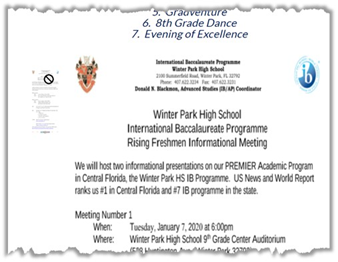
In this case, there really is no reason why the page author could not have simply typed the text into the content area and formated it to look exactly like the original document. Yes, it may have been a little more work, but it would have been readable by everyone, including screen readers. They could even insert the two images, one left justified and one right-justified as shown. Using an image for the entire page was probably the result of scanning the original document to avoid retyping the content.
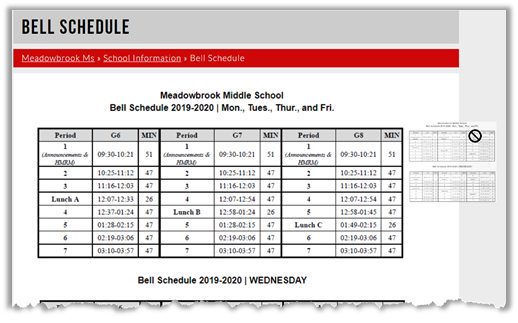
The following example shows the important bell schedule information for a school. However, a vision-impaired person who uses a screen reader will see this page as a blank page.
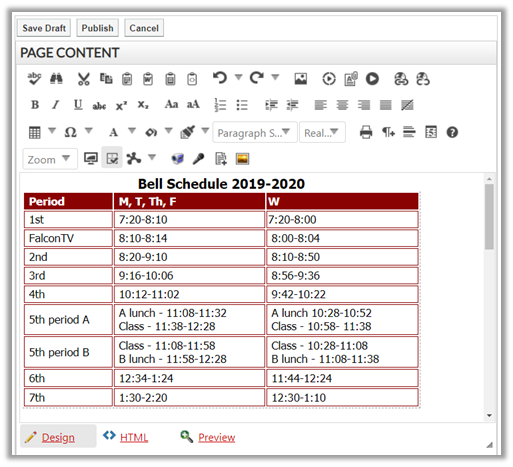
Again, there is no good reason to not use the Content Editor tools within SchoolMessenger. This time, the recommendation is to create a table with the corresponding important bell schedule information using the Table tool as shown on this page from a different school.
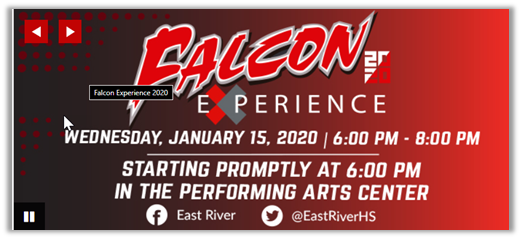
When it comes to banner images, no matter how great the image looks to a sighted person, you have to consider the vision-impaired or a blind person. If the image is too blurry to read or has no alt text or the alt text does not include all of the text on the image, you may be leaving some vision impaired visitors to your site in the dark. In the example below, the alt-text says, “Falcon Experience 2020”, but it does not tell the person using the screen reader when the event occurs, date and time, or that information can also be found on the school’ Facebook and Twitter sites.
In some cases, the text on the image does not have sufficient contrast with the background color(s) for the text to be clear even for many sighted visitors to your pages. The color contrast rules that apply to regular text also apply to the text within images. In the image below, the contrast between the text and background is only 2.9:1 which is below the minimum requirement of 3:1 for large text and significantly below the required 4.5:1 for smaller text. Note also that the alt text in this example does not include the same information as the text in the image, nor does it adequately describe what the image is about. If you were to close your eyes and someone said the alt text for the image was Johnny’s New House, what image would you see in your head?
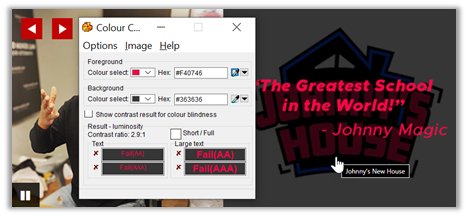
At least for banner images on the school’s home page, there is another option to alt-text. The Summary text is part of the image properties when editing the Banner web part. Like alt text, the Summary text should provide relevant information about the image so that a vision-impaired person using a screen reader might have some clue as to what the image shows and why it was included in the banner.
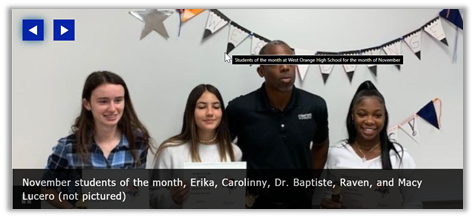
Sometimes the alt-text for an image is obvious such as for the example below that shows a text logo. In this case, the logo appears by itself on the page, not as a link. Therefore, the alt text should not say anything about going to another page or website. Rather, it should just echo the text on the image. It does not need to say “logo.”

Another important point about using images on web pages is that you should never copy and paste an image from another source into the web content areas. This practice makes it difficult for others who may follow you as page editors to edit the content area to possibly correct ADA issues or other image properties. Always upload the image using the Image Manager in SchoolMessenger. Then use the Image Manage to also select the image to appear on the page. This places a link to that image in the content area, not the binary definition of the image. In the following example, the image appears small (with some unreadable blurry text at the top).

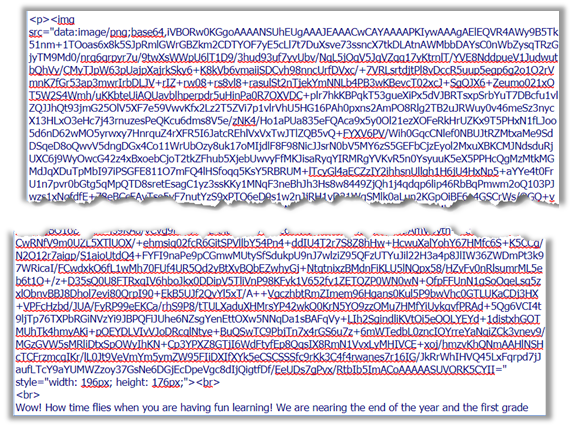
However, that image results in a large amount of ‘binary’ data being added to the HTML of the page. When multiple images appear on a page, a web page editor may have a very difficult time determining where one image ends and the next begins making it hard to manage the rest of the HTML when fixing ADA or other issues. Also, these images cannot be shared across multiple pages such as in the case of logos or other common images.
The image below shows only a very small portion of the HTML source that the viewer’s browser must now interpret for the above image. In fact, over 90% of the HTML code was ‘cut out’ just to display the relevant start and end of the image code. Note in this case that the image did not have an alt element. Finding and fixing these problems is more difficult for the web page editors than when the image is referenced by just a link to the File Manager. Note: all images must have an alt element even if it is a null string: alt=””.
One last thing to note about images and alt text. If you add an image to a web page, but the image is decorative, you may still need to include some alt text to save the image from the SchoolMessenger Image Manager. This is an issue that SchoolMessenger is aware of and should be corrected in a future version. The user should be asked if the image is decorative only and require additional alt text only when the image is not decorative. This is how Adobe Acrobat works. In the meantime, you may need to include at least a character or two as alt text in order to add the image to the content area. However, you cannot leave those characters in the alt string. After the image is on the page, you must edit the HTML to remove the alt text used so that it now uses the null string: alt=””. However, if you open the Properties dialog for that image within SchoolMessenger content editor the alternate and title text that way, the dialog may save the <img> tag back with title=”null”. First, a decorative image does not require a title element. However, if the title element is included, it must also be set to the null string: title=””. That is NOT the same as: title=”null”. This can be corrected only by directly editing the image tag <img> within the HTML.
As you can see from this and several prior posts, you will be challenged to get alt text for images right. However, it is a necessary skill to learn so that your pages are accessible by all users, not just sighted users.
Return to the beginning of the Alt Text Series.