

This post examines Level A accessibility errors related to links that you can fix. Over the entire district’s sites, there are 28 Level A compliance issues that the district must resolve and 8 warning issues at this level. In addition, 54 Level A issues require manual review. Your site may not have all of these. So, like a buffet, just take what you like. Where to begin?
I’m going to use the district report for all examples here. Your site reports will be similar. Start from your domain list and click on the number associated with Accessibility as shown below:

This action takes you to a Summary page for all Accessibility issues. Let us focus on the left navigation, specifically the Check List menu item. When you click this option, the right side of the page displays first the Level A accessibility checks that you need to look at. Each check only appears once in this list while displaying the number of effected pages on the right side.
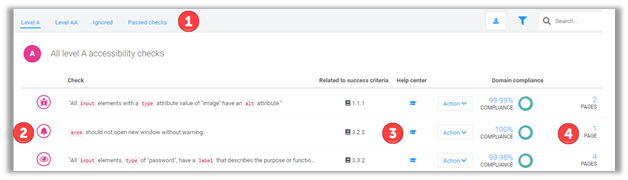
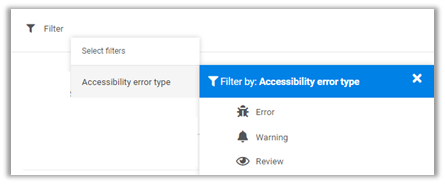
In the top header (1), you can filter the accessibility issues by level. You can also look at issues that are currently ignored (do not select ignore for any issues unless directed by the district’s ADA governing staff), and Passed checks. On the right side of this header are three additional controls. The first control is a button to download a report of the errors. The second button lets you set a filter based on the severity of the accessibility error.
The last control on the far right of the header is a search control that lets you find errors that are similar. For example, if I want to see all the accessibility issues related to links (or at least have link in their title), I can enter ‘link’ in the search control.
While all reported issues must be reviewed, they are categorized as members of one of three severity levels (2):
Accessibility Check Severity Levels:
|
Icon |
Severity Level |
|
|
Bug |
|
|
Warning |
|
|
Review |


Each accessibility check identifies the WCAG success criteria that defines the requirement, but more importantly for most of us is the Help Center button (3) which provides a more readable explanation of the accessibility issue and typically shows both a good and a bad example.
Finally, the last column shows the number of pages (4) the accessibility check occurs within your site. Note that this is not the same as the number of occurrences as multiple occurrences can appear on a single page.
So with that basic understanding of the layout of the accessibility report check list page, let begin looking at link issues.
Level A Link Errors
There is only 1 severe error:
Alt text for all img elements used as source anchors is not empty when there is no other text in the anchor.
You may not immediately understand what this error is trying to say. So, click on the Accessibility Help Center button mentioned above for a more detailed explanation. In the Help Center, it becomes clearer by looking at the Pass and Fail examples that when you place an image inside of anchor tags (or think of this as wrapping an image within a hyperlink so you can jump to another page or document when you click on the image).
You have two ways to fix this problem:
- Put alt text in the anchor tag (the hyperlink) that describes what happens when the user clicks on the image.
- Put alt text in the image that describes what happens when the user clicks on the image
You do not have to do both.
Here is a real example of code from a school page that fails this test:
<p> <a href=”http://www.subway.com/subwayroot/index.aspx” target=”_blank”><img src=”/UserFiles/Servers/Server_75553/Image/School Information/Partners in Education/subway.JPG” alt=”” border=”0″></a></p>
A simple correction would be:
<p> <a href=”http://www.subway.com/subwayroot/index.aspx” target=”_blank”><img src=”/UserFiles/Servers/Server_75553/Image/School Information/Partners in Education/subway.JPG” alt=”Click here to visit our partner in education, Subway’s web site” border=”0″></a></p>
Level A Link Warnings
Next, let us look at some warning issues.
Suspicious link text
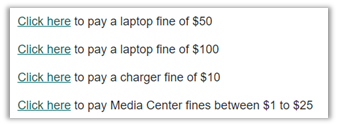
This error refers to links that display text like: Click here. This text does not indicate the purpose of the link. If the link is to visit another page or a document, place the human friendly name of that page or document (but not the URL)or at least a few words that describe what the user can expect to find when clicking on the link. An example of bad link text from our portal is:
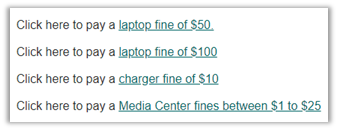
A better choice would be:
Links to multimedia require a text transcript
If you have a link to a multimedia file or to a sound file (ending in .wmv, .mpg, .mov, .ram, .aif, or similar) The document must have an associated text transcript of the video or sound file. You may not simply place the link on a page without the text transcript.
For example, the following text on the page does not satisfy the requirement of having a text transcript of the video referenced in the link at the end of the paragraph.
Dr. Edwards is the Lake Nona High School College Transition Counselor on campus every Monday to assist you. You can find Dr. Edwards in Student Services. Click here to watch a short video for more information on how Dr. Edwards can help you.
ASCII art should have a skipover link
Officially, the recommendation is to replace ASCII art with an image although, it is possible to meet this requirement by placing a link immediately before the ASCII art to jump over it. (Later in this post I will show a “skip to content” link which is the same thing.)
Level A Link Review Issues
Finally, here are the review issues under Level A of Accessibility for links.
Link text is meaningful when read out of context
The link text must be meaningful when read outside of the context
Some bad examples from our portal include link text that just says: ‘link’ or is a repeat of the URL for that link. For example, the following text just echoes the link, which has little meaning for most site visitors:
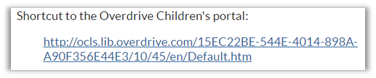
It would be better to display the link as:

All groups of links with a related purpose are marked
If you have a group of related links, rather than list them as in the following image:
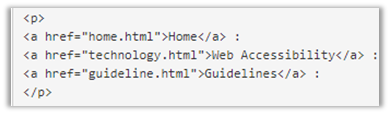
Place them inside a <div> section with at least a title attribute:
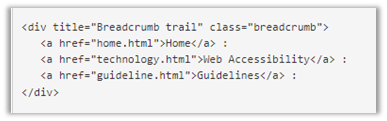
Unfortunately, this may require a bit of HTML knowledge to modify the content to meet this requirement.
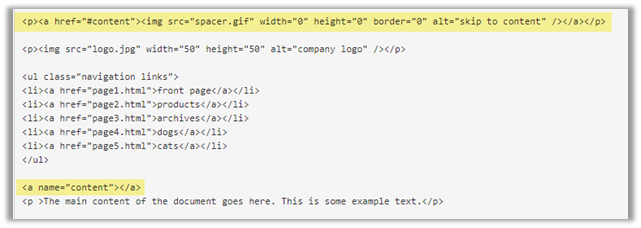
A “skip to content” link appears on all pages with blocks of material prior to the main document
This requirement occurs if you start a page with images and or hyperlinks. Then the highlighted text must be added to allow screen readers to jump directly to the start of the page’s content.
Alt text for all area elements identifies the link destination
In the following example, the first area element has alt text that described the link destination as: Canvas Parent Login. However, while the second <area> element has a title property (which by the way is wrong), there is no alt text to describe the link destination which is the OCPS Launchpad home page.
<area shape=”CIRCLE” coords=”134,130,118″ href=”https://ocps.instructure.com/login/canvas” target=”_blank” alt=”Canvas Parent Login”></map><map id=”rade_img_map_1505783266704″ name=”rade_img_map_1505783266704″>
<area shape=”CIRCLE” coords=”120,114,107″ href=”https://launchpad.classlink.com/ocps” title=”Canvas Student Login”></map>
I hope until next time as I dive deeper into accessibility issues reported by Monsido that this post gave you a few pointers on how to resolve some of the accessibility issues in your website.
Note: if your HTML code is overly complex to read, more than likely you copied and pasted text from another platform (like MS Word) without stripping it down to just plain text first.