

When you upload a PDF or other file to the Portal, you have to avoid invalid characters in the URL of the filename. On the internet, you will find various lists of characters that are valid and those that are not. However, they do not always differentiate between characters that can be part of the name and characters used to separate parameters from the file name or characters used to as escape character sequences. The bottom line to me is the only valid characters are:
Uppercase letters
Lowercase letters
Numbers
Characters: _ + and –
You can use a blank character in a filename, but don’t. I’ll discuss this in a moment.
How can you tell if the characters in your filename are valid? If you upload a file using SchoolMessenger’s File Manager, you should be able to double click on the filename and display the file in a small window. In the first image below, you can see several files that have a plus sign used to separate words rather than blank spaces. Some systems automatically convert spaces in a URL to the escape sequence %20; which consumes 3 bytes rather than 1 byte in the URL string which has a limited length. In SchoolMessenger, when you name a new page, it replaces spaces with an underscore ‘_’. Why not be consistent and always use an underscore?
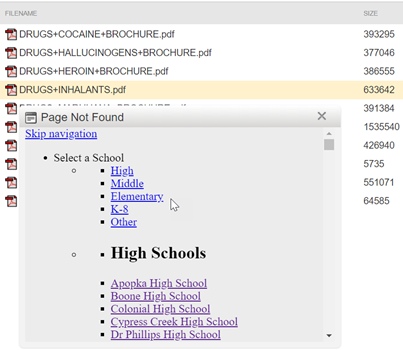
Notice in this images, when I double clicked DRUGS+INHALANTS.pdf, the file window displayed a navigation structure from the Select a School dropdown and if you scroll down further, it will tell you that the file you clicked on could not be found? “Could not be found?” you say. But I just clicked on it. Well the plus sign ‘+’ is not treated as a character in the name and causes the URL to go a little ‘wonky’. But you can easily fix this.
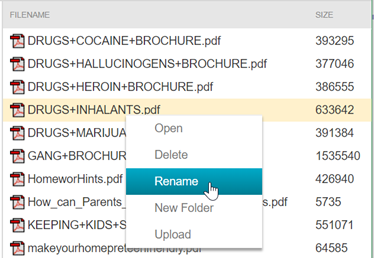
Simply right click the filename to display the dropdown menu and select Rename as shown in the next figure.
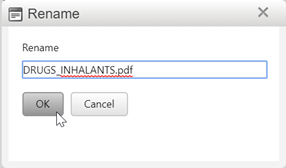
This action displays the Rename dialog box that allows you to edit the filename. In this case, I replaced the plus sign with an underscore (to be consistent).
Now when I double-click the renamed file, it correctly opens the PDF.
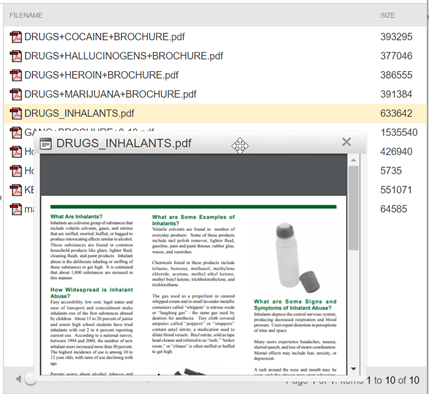
At this point I could correct the rest of the file names in the folder and be done.
Almost…
If you already referenced the files in a hyperlink somewhere on your website, you will need to find those references and correct the spelling of the hyperlink there as well and republish the page.
Now you are done.